

View Admin Guide
Table of Contents
1. Introduction
1.1 What is This?
This WhatsApp Integration lets you chat with your customers directly from SuiteCRM! Instead of switching between WhatsApp and your CRM system, everything happens in one place. You can send messages, receive replies, and even set up automated conversations—all without leaving SuiteCRM.
Here's what you can do:
- Chat with customers in real-time
- Set up automated conversations (like appointment booking or support tickets)
- Send messages to many people at once
- Keep all your WhatsApp chats organized in your CRM
- See reports on your messaging activity
1.2 Why Use This?
- Talk Where Your Customers Are: Most people use WhatsApp every day, so they'll see your messages right away
- Save Time with Automation: Set up automated conversations for common tasks like booking appointments or getting support
- Everything in One Place: All your WhatsApp conversations are saved in SuiteCRM, so you never lose track of customer communications
- Reach Many People at Once: Send the same message to multiple contacts with just a few clicks
- Professional Templates: Use pre-approved message templates that look professional and consistent
- See What's Working: Track which messages get delivered and which ones customers respond to
1.3 What You Need
To use this integration, you'll need:
- SuiteCRM version 7 or newer
- A WhatsApp Business Account (this is different from a regular WhatsApp account)
- Admin access to SuiteCRM (to set things up initially)
1.4 Before You Start
Before you can start chatting with customers, your administrator needs to set up a few things:
- Connect your WhatsApp Business Account to SuiteCRM
- Configure some settings so messages can be sent and received
- Set up message templates (if you want to use them)
Once your administrator completes the initial setup, you're ready to go! Most of the day-to-day use doesn't require any technical knowledge.
2. Getting Started
2.1 Is It Already Set Up?
If you're reading this guide, the WhatsApp Integration is probably already installed in your SuiteCRM. If you can't find the WhatsApp menu option, ask your system administrator to install it for you.
2.2 First-Time Setup
Before you can start using WhatsApp in SuiteCRM, your administrator needs to complete the initial setup. This is usually a one-time process. Once it's done, you can start chatting right away!
If you're the administrator setting this up, you'll need to:
- Connect your WhatsApp Business Account to SuiteCRM
- Enter your account information
- Test that messages can be sent and received
- (Optional) Customize automated conversation messages
- (Optional) Set up message templates
3. Configuration
Note for Administrators: This section covers the initial setup. Most regular users won't need to change these settings once they're configured. If you're not an administrator and want to learn how to use the features, please refer to the User Guide.
The phone number you plan to use for the WhatsApp Business API must not be already registered with any WhatsApp account.
If the number is currently used in:
- WhatsApp (personal app)
- WhatsApp Business app
you must first remove the number by deleting the WhatsApp account from the mobile app. After deletion, wait a few minutes and then return here to continue the setup.
⏱️ Cause: WhatsApp does not allow a phone number to be used both on the mobile WhatsApp/WhatsApp Business app and with the WhatsApp Cloud API at the same time.
3.1 Connecting Your WhatsApp Business Account
Where to find this: Go to Administration > WhatsApp Configuration > WhatsApp Cloud API - Settings
This is where you connect your WhatsApp Business Account to SuiteCRM. Think of it like logging into your WhatsApp account so SuiteCRM can send and receive messages on your behalf.
3.1.1 Step 1: Get Your Account Information
You'll need to get some information from your WhatsApp Business Account:
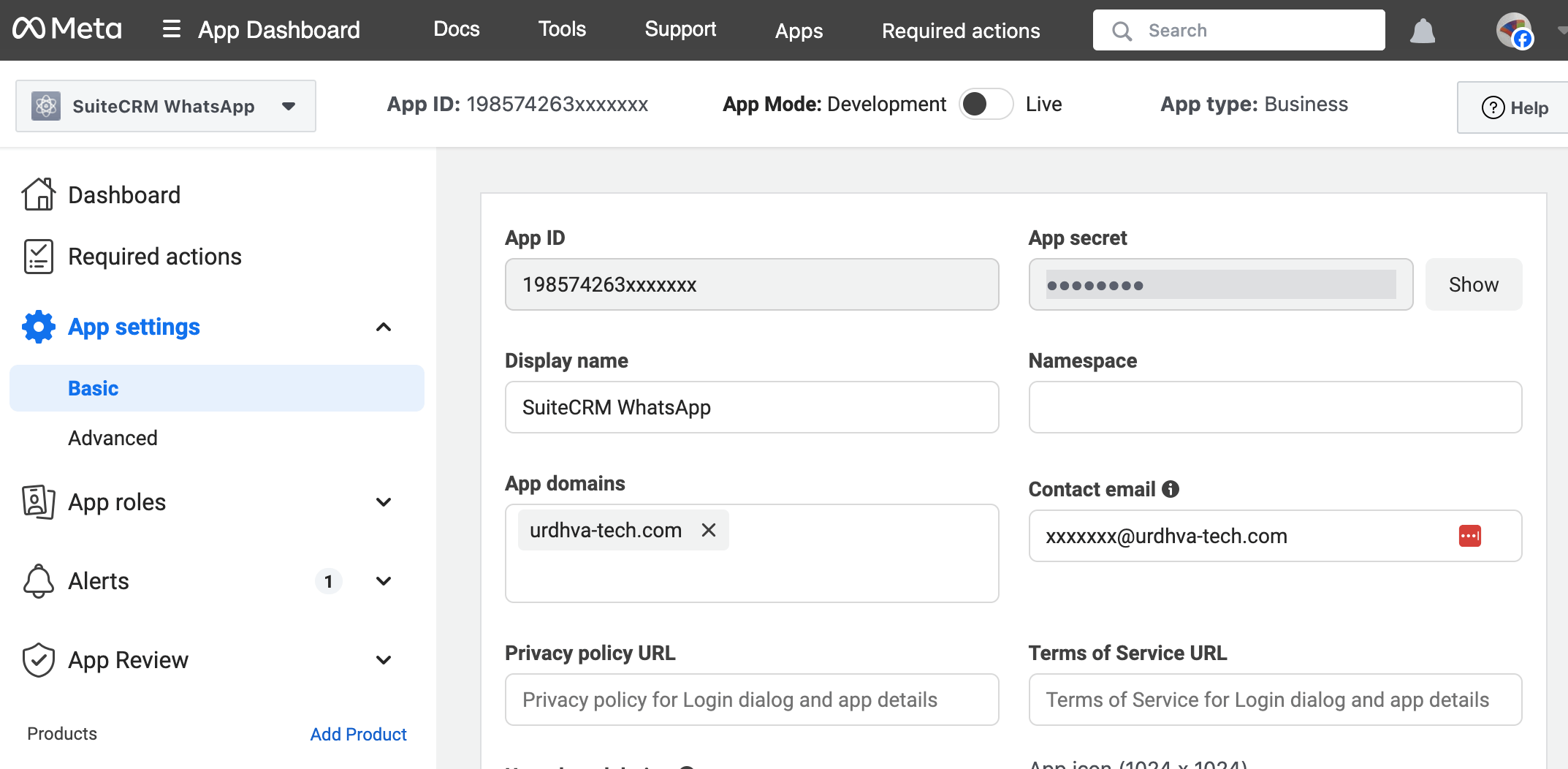
- Go to Meta for Developers (this is Facebook's developer website)
- Find your WhatsApp Business App
- Copy your App ID and App Secret (these are like your account username and password)
- Paste them into SuiteCRM
- Click Save Settings
3.1.2 Step 2: Enter App ID and App Secret in SuiteCRM
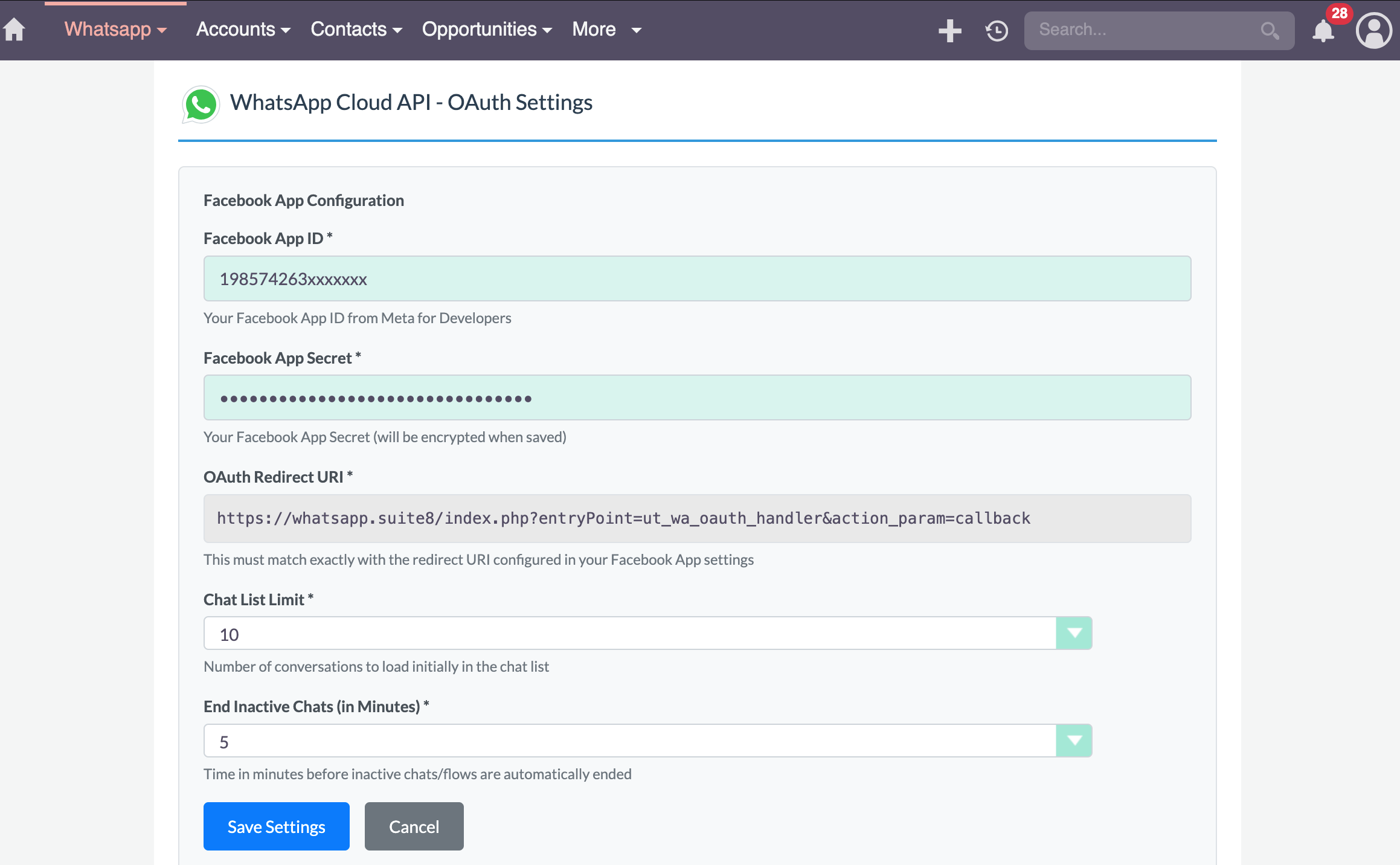
Now paste the credentials you copied from the previous step:
- In SuiteCRM, go to Administration > WhatsApp Configuration > WhatsApp Cloud API - Settings
- Paste the App ID and App Secret you copied from Meta for Developers
- Click Save Settings
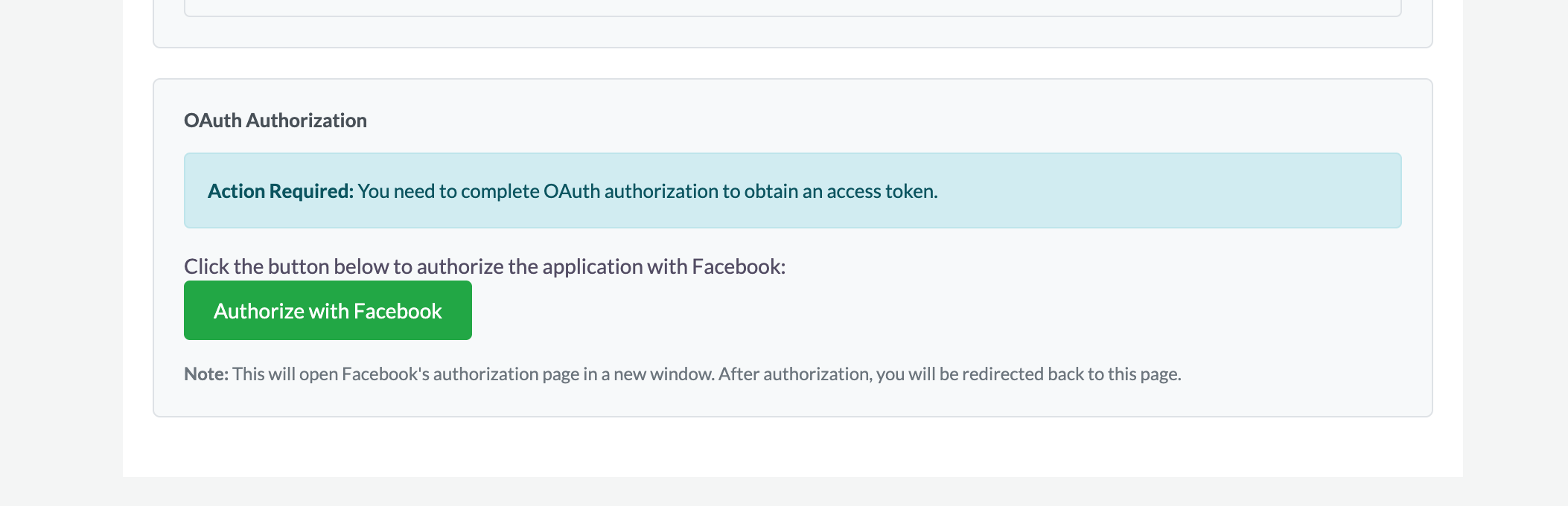
After saving your App ID and App Secret, you'll see the Authorize with Facebook button. Click this button to connect your SuiteCRM with your WhatsApp Business account and complete the authorization process.
3.1.3 Setting Up Message Receiving
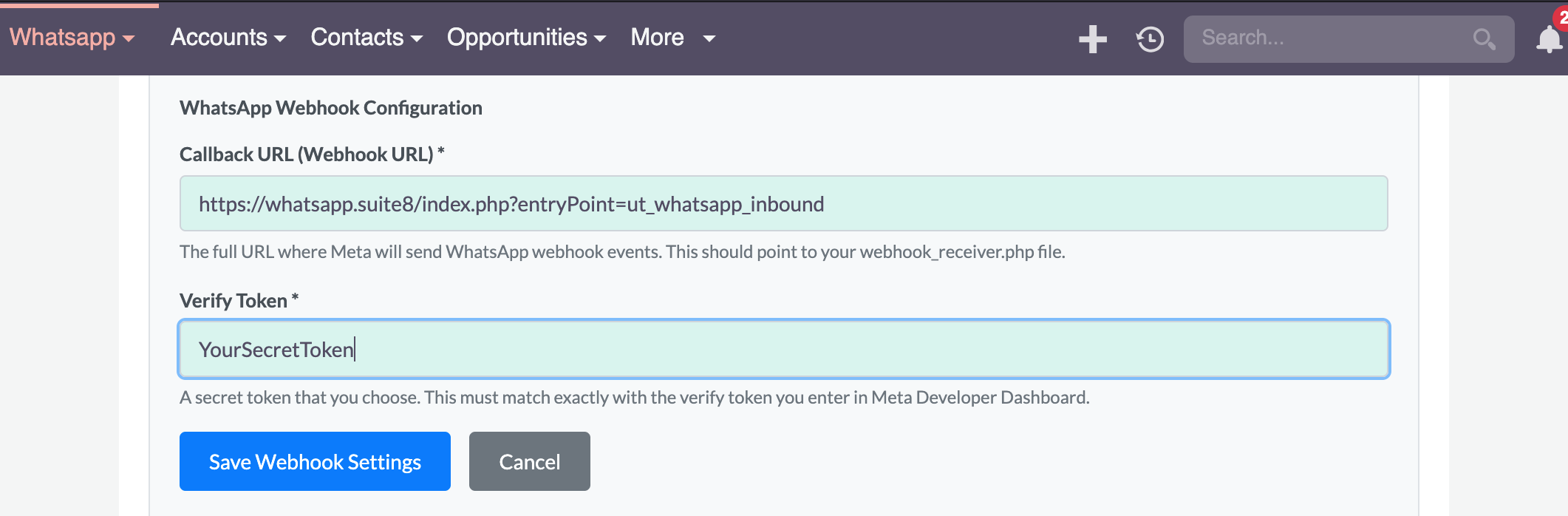
To receive messages from customers, you need to tell WhatsApp where to send them. This is called setting up a "webhook" (think of it like giving WhatsApp your SuiteCRM address).
Your system administrator will need to:
- Get a special web address from your SuiteCRM installation
- Enter this address in your WhatsApp Business settings
- Set up a security code (called a "verify token")
- Make sure the same code is entered in both places
- Subscribe to the following webhook fields (these are the objects you get notified about):
- account_alerts
- message_template_components_update
- message_template_quality_update
- message_template_status_update
- messages
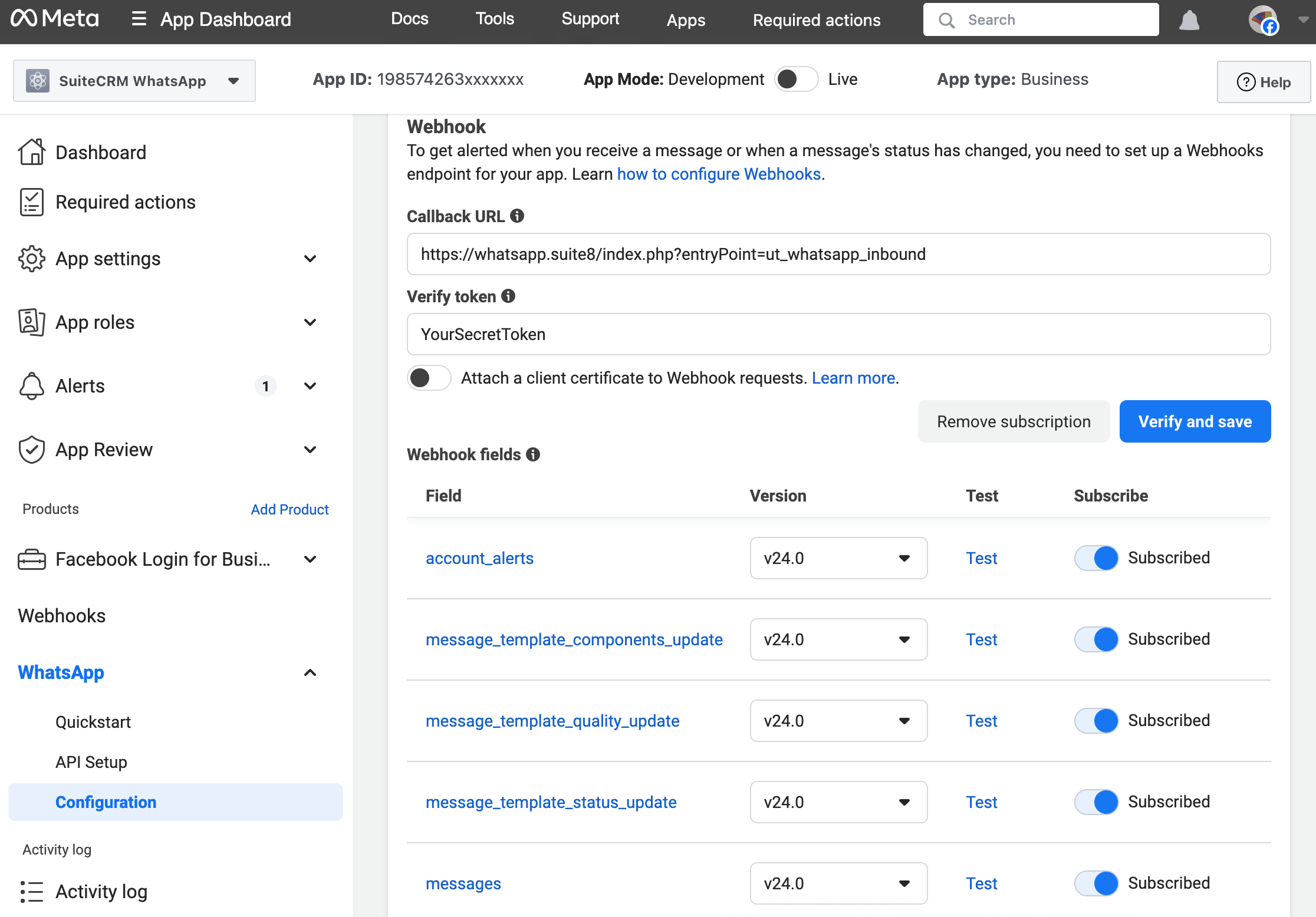
Copy the callback URL (Webhook URL) and the Verify Token from SuiteCRM and paste them into the corresponding fields in Meta for Developers.
3.1.4 Customizing Your Chat Experience
You can adjust a few settings to make the chat work better for you:
How many conversations to show:
- This controls how many recent chats appear in your chat list
- Default is 10 conversations
- You can show anywhere from 1 to 100 conversations
How long before automated conversations time out:
- If a customer starts an automated conversation but doesn't respond, how long should SuiteCRM wait?
- Default is 5 minute
- You can set it anywhere from 1 to 10 minutes
3.2 Setting Up Automated Conversations
Where to find this: Go to Administration > WhatsApp Configuration > WhatsApp Flow Messages - Settings
Automated conversations (called "flows") let customers interact with your business through WhatsApp without you having to respond manually. For example, customers can book appointments or create support tickets by answering a few questions.
3.2.1 Turning Flows On or Off
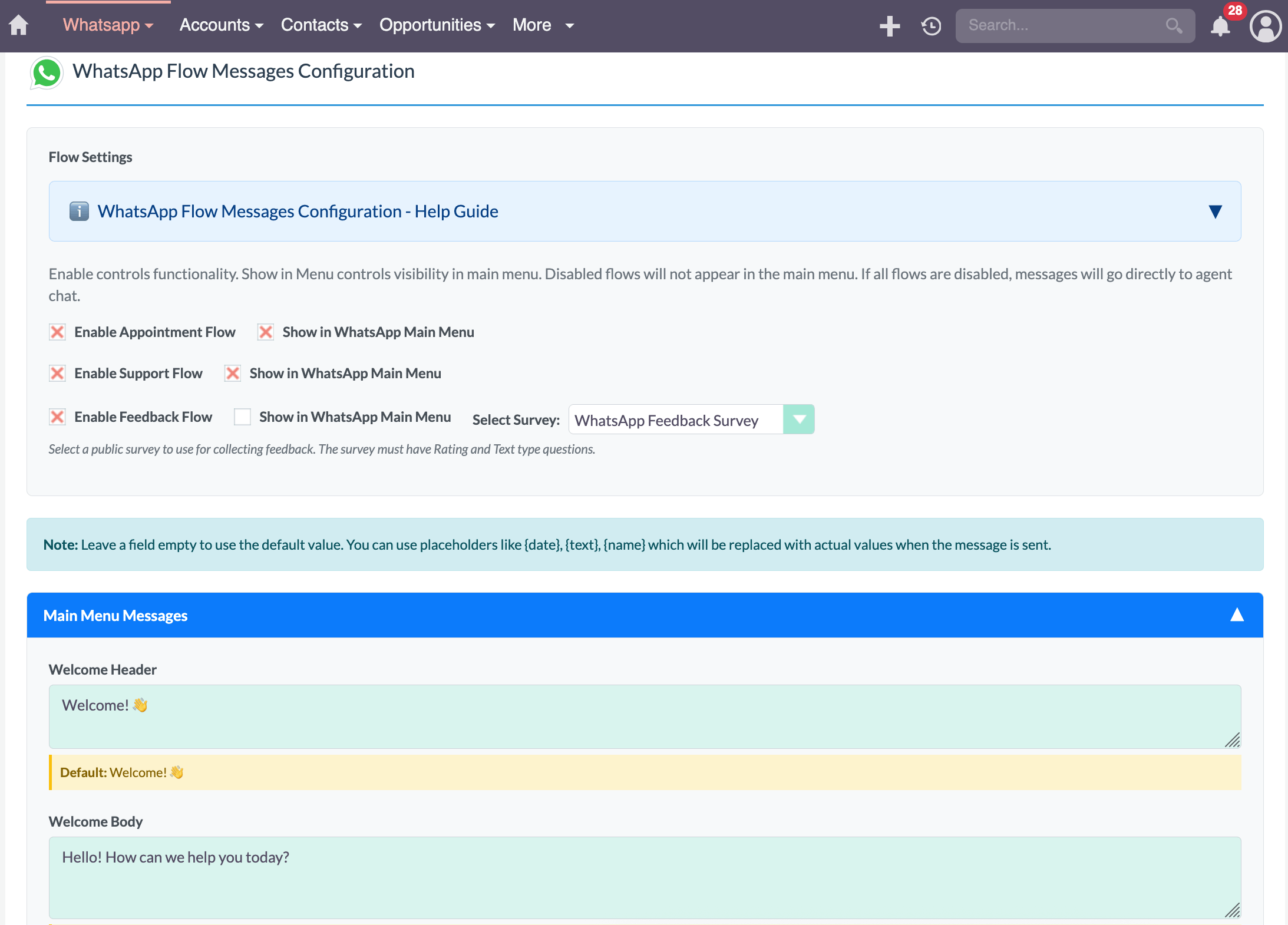
You can choose which automated conversations you want to offer to customers:
- Appointment Flow: Let customers schedule appointments themselves
- Support Flow: Let customers create support tickets
- Marketing Flow: Share promotions and special offers
- Feedback Flow: Collect customer ratings and comments
To turn a flow on or off:
- Go to Flow Messages Settings
- Check or uncheck the box next to each flow you want to enable or disable
- Click Save Settings
3.2.2 Showing Flows in the Menu
You can control which flows customers see when they interact with your business:
- Show in Menu: Customers will see this option in the main menu
- Hidden: The flow works but won't appear in the menu (you can still trigger it automatically)
3.2.3 Customizing What Customers See
You can change all the messages that customers see during automated conversations. This lets you make the conversations sound like your business and match your brand.
You can customize:
- The main menu that customers see first
- All messages in the Appointment Flow
- All messages in the Support Flow
- All messages in the Marketing Flow
- All messages in the Feedback Flow
Just go to the Flow Messages Settings page and edit any message you want to change!
3.2.4 Connecting Feedback to Surveys
If you use SuiteCRM Surveys, you can connect them to the Feedback Flow. When customers give feedback through WhatsApp, it will automatically create survey responses in SuiteCRM.
To set this up:
- First, create a Survey in SuiteCRM with:
- At least one question where customers can give a star rating (1-5 stars)
- At least one question where customers can write comments
- Go to Flow Messages Settings
- Find the Feedback Survey dropdown
- Select your survey
- Save settings
3.3 Personalizing Message Templates
Where to find this: Go to Administration > WhatsApp Configuration > WhatsApp Template Mapping
Message templates let you send professional, pre-written messages. But wouldn't it be great if you could automatically fill in each customer's name or other details? That's what template mapping does!
3.3.1 How It Works
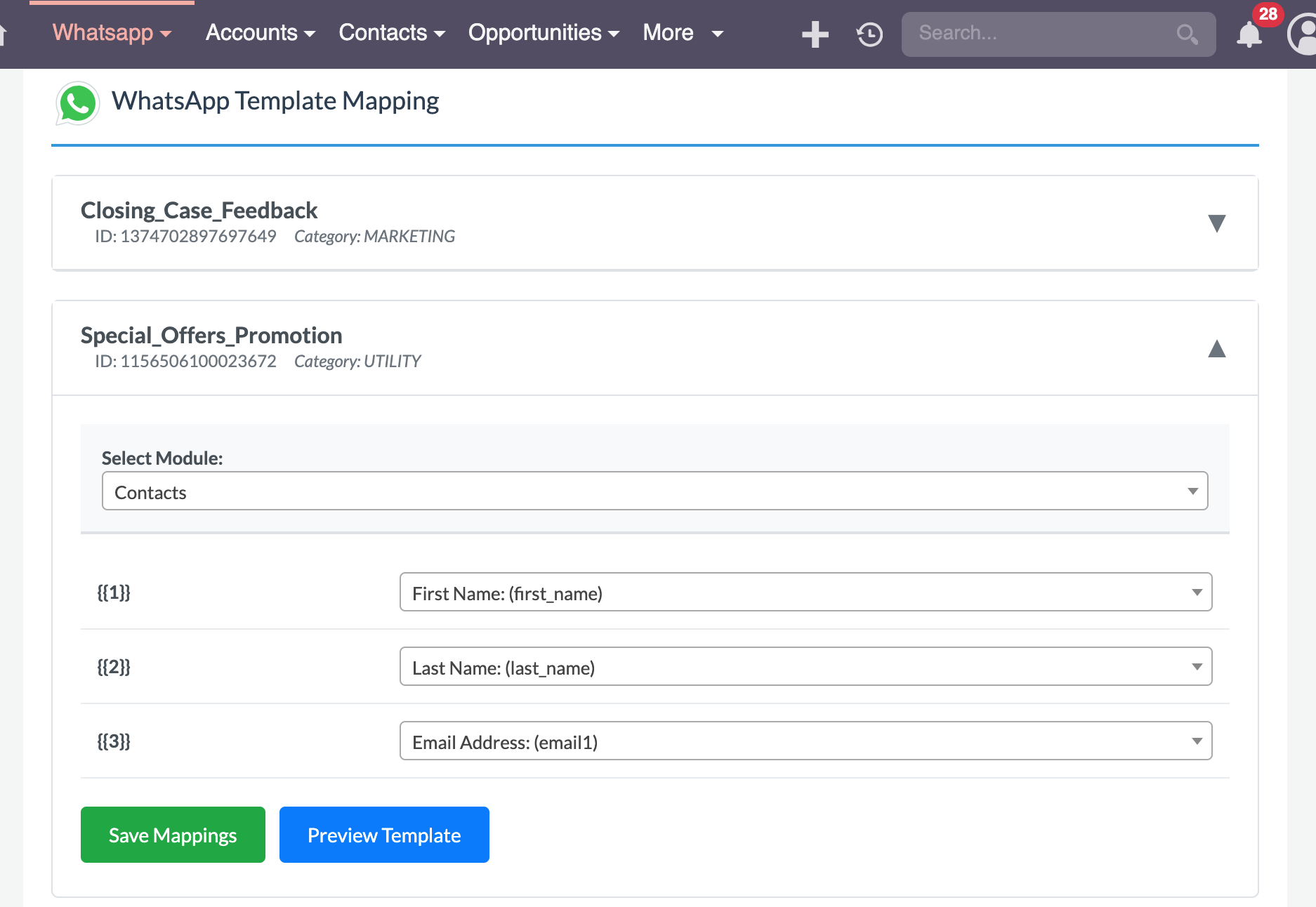
When you create a template mapping, you're telling SuiteCRM: "When you see this placeholder in the template, replace it with information from the customer's CRM record."
For example, if your template says "Hello {{1}}, your order is ready!" you can map {{1}} to the customer's first name, so each message will say "Hello John, your order is ready!" or "Hello Sarah, your order is ready!" automatically.
3.3.2 Creating a Mapping
Step by step:
- Go to Template Mapping Configuration
- Click Add New Mapping
- Choose which WhatsApp template you want to personalize
- For each placeholder in the template (like {{1}}, {{2}}, etc.):
- Choose which type of record this is for (Contact, Account, Lead, etc.)
- Choose which field from that record to use (like First Name, Email, Company Name, etc.)
- Or, if you want the same text for everyone, just type in a static value
- Click Save Mapping
3.3.3 When Mappings Are Used
Once you create a mapping, SuiteCRM will automatically use it whenever you:
- Send messages through automated workflows
- Send bulk messages using templates
- Send a template message from a customer's record
You don't need to do anything special—SuiteCRM will automatically fill in the customer's information!
4. Troubleshooting
Having trouble? Don't worry! Here are solutions to common problems you might encounter.
4.1 Common Problems and How to Fix Them
I'm Not Receiving Messages from Customers
If messages from customers aren't showing up in SuiteCRM, here's what to check:
- Check with your administrator: The connection between WhatsApp and SuiteCRM might need to be reconfigured
- Make sure the setup is complete: The initial connection setup must be done correctly for messages to be received
- Check if it's a temporary issue: Sometimes there are brief delays, especially right after setup
I Can't Send Messages
If your messages aren't sending, try these steps:
- Check the phone number: Make sure it's in the correct format (with country code, like +1234567890)
- Use a template if needed: If you haven't chatted with this person in 24+ hours, you must use an approved template
- Check if the template is approved: Templates need to be approved by WhatsApp before you can use them
- Wait a moment and try again: Sometimes there are temporary delays
- Check with your administrator: The connection to WhatsApp might need to be refreshed
My Connection Expired
If you see a message saying your connection expired or your token needs refreshing:
- Go to Administration > WhatsApp Configuration > WhatsApp Cloud API - Settings
- Look for a button that says something like "Refresh Connection" or "Refresh Token"
- Click it and follow the prompts
- You might need to log in to your WhatsApp Business Account again
If you're not an administrator, ask your administrator to do this for you.
Bulk Messages Failed
If some of your bulk messages didn't send:
- Check phone numbers: Make sure all selected contacts have valid phone numbers
- Check the template: Make sure you're using an approved template
- Check the Statistics page: See which messages failed and why
- Try sending in smaller batches: Sometimes sending too many at once can cause issues
4.2 Understanding Error Messages
If you see an error code, here's what it usually means:
- Error 100: Something is wrong with the information you entered (like an invalid phone number or missing template)
- Error 131047: The message couldn't be delivered (maybe the phone number is wrong or the person blocked you)
- Error 132000: You're sending messages too quickly—slow down and try again in a few minutes
- Error 190: Your connection to WhatsApp needs to be refreshed (see "My Connection Expired" above)
If you see an error you don't understand, take a screenshot and ask your administrator for help. They can usually figure out what's wrong!