

View User Guide
Table of Contents
1. Introduction
1.1 What is This?
This WhatsApp Integration lets you chat with your customers directly from SuiteCRM! Instead of switching between WhatsApp and your CRM system, everything happens in one place. You can send messages, receive replies, and even set up automated conversations—all without leaving SuiteCRM.
Here's what you can do:
- Chat with customers in real-time
- Set up automated conversations (like appointment booking or support tickets)
- Send messages to many people at once
- Keep all your WhatsApp chats organized in your CRM
- See reports on your messaging activity
1.2 Why Use This?
- Talk Where Your Customers Are: Most people use WhatsApp every day, so they'll see your messages right away
- Save Time with Automation: Set up automated conversations for common tasks like booking appointments or getting support
- Everything in One Place: All your WhatsApp conversations are saved in SuiteCRM, so you never lose track of customer communications
- Reach Many People at Once: Send the same message to multiple contacts with just a few clicks
- Professional Templates: Use pre-approved message templates that look professional and consistent
- See What's Working: Track which messages get delivered and which ones customers respond to
1.3 What You Need
To use this integration, you'll need:
- SuiteCRM version 7 or newer
- A WhatsApp Business Account (this is different from a regular WhatsApp account)
- Admin access to SuiteCRM (to set things up initially)
1.4 Before You Start
Before you can start chatting with customers, your administrator needs to set up a few things:
- Connect your WhatsApp Business Account to SuiteCRM
- Configure some settings so messages can be sent and received
- Set up message templates (if you want to use them)
Once your administrator completes the initial setup, you're ready to go! Most of the day-to-day use doesn't require any technical knowledge.
2. Getting Started
2.1 Is It Already Set Up?
If you're reading this guide, the WhatsApp Integration is probably already installed in your SuiteCRM. If you can't find the WhatsApp menu option, ask your system administrator to install it for you.
2.2 How to Open WhatsApp Conversations
Once everything is set up, here's how to start chatting:
- Log in to SuiteCRM
- Look for WhatsApp in the main menu
- Click on Conversations
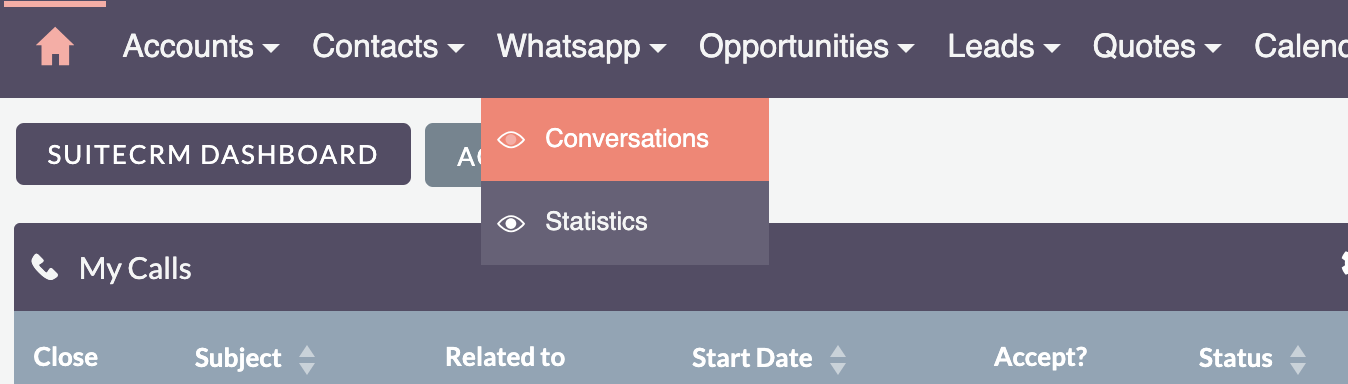
You can also start a chat directly from a Contact, Account, or Lead record—just look for the WhatsApp button!
3. How to Use WhatsApp in SuiteCRM
Now that everything is set up, here's how to actually use WhatsApp to communicate with your customers!
3.1 Chatting with Customers
3.1.1 Opening a Chat
There are two easy ways to start chatting:
- Go to WhatsApp in the main menu, then click Conversations
- Or, when you're viewing a Contact, Account, or Lead record, look for the WhatsApp button and click it
Either way, you'll see a familiar chat interface that works just like WhatsApp!
3.1.2 Understanding the Chat Screen
When you open Conversations, you'll see:
- Left side (Chat List): All your recent conversations, with the most recent at the top
- Right side (Chat Window): The conversation you're currently viewing
- Plus icon (+): Click to search by name or phone number to quickly find or start a conversation
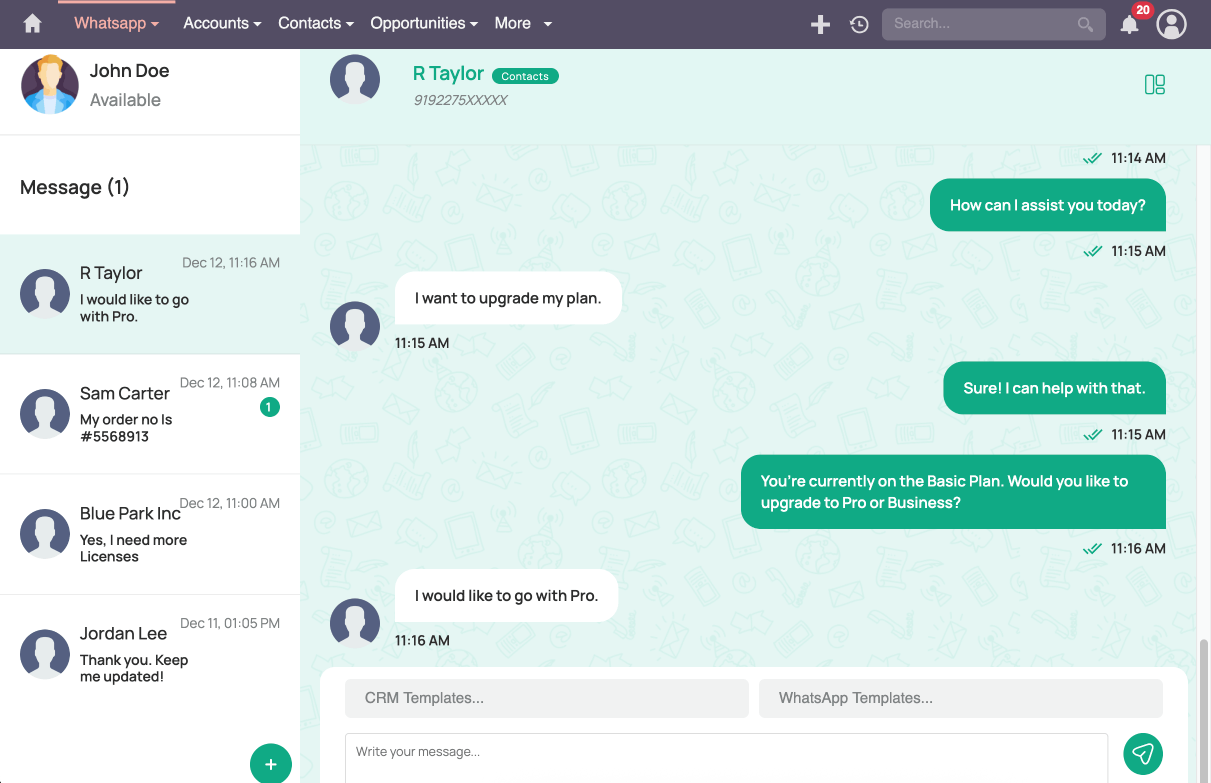
Click on any conversation in the list to open it and see the full chat history.
3.1.3 Sending Messages
Sending a regular text message:
- Open the conversation you want to chat in
- Type your message in the text box at the bottom
- Click Send or just press Enter
Sending a template message:
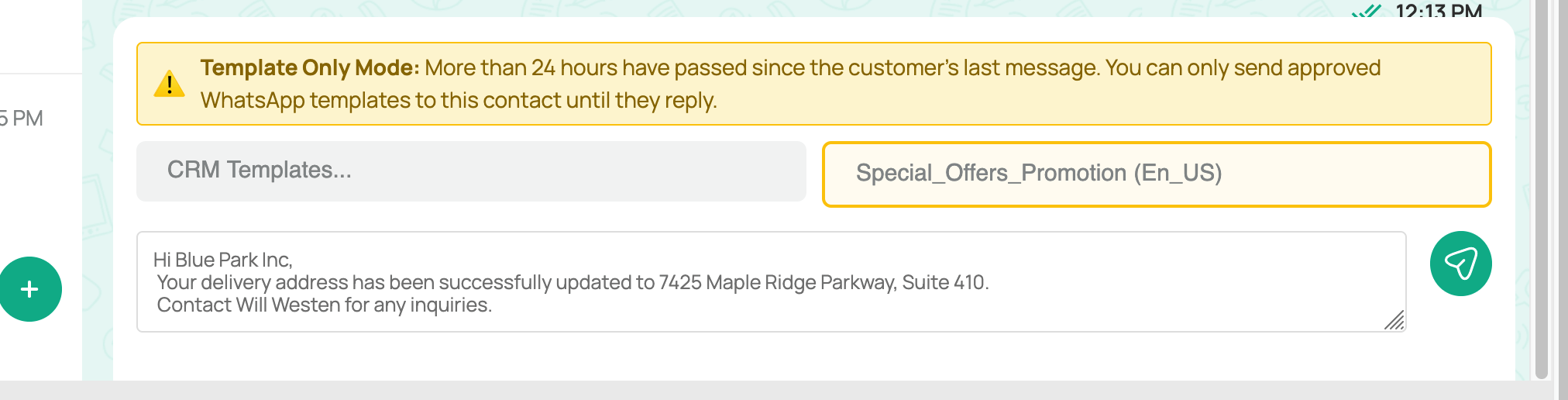
Templates are pre-written messages that look professional. They're great for common situations like order confirmations or appointment reminders.
- Open a conversation
- Look for the Template dropdown (usually near the message box)
- Select the template you want to use
- If the template has placeholders (like customer name), SuiteCRM will automatically fill them in
- Review the message to make sure it looks right
- Click Send
3.2 Automated Conversations (Flows)
Flows are like having a helpful assistant that can talk to customers automatically! Instead of you having to respond to every message, customers can interact with automated conversations to get things done.
Think of it like a phone menu system, but through WhatsApp. Customers choose options, answer questions, and get things done—all automatically!
3.2.1 Appointment Booking Flow
What it does: Lets customers book appointments themselves, 24/7, without you having to be available!
How customers use it:
- Customer starts the appointment flow from your WhatsApp menu
- They choose to book a new appointment or view existing ones
- They pick a date and time from available options
- A Meeting record is automatically created in SuiteCRM
- You get notified, and the customer gets confirmation
Why it's useful: Customers can book appointments even when your office is closed, and you don't have to play phone tag trying to find a time that works for everyone.
3.2.2 Support Ticket Flow
What it does: Lets customers create support tickets and check on existing ones, all through WhatsApp.
How customers use it:
- Customer selects the support option from your WhatsApp menu
- They can create a new support ticket or check an existing one
- They describe their issue and choose a priority level
- A Case record is automatically created in SuiteCRM
- You can see the ticket and respond when ready
Why it's useful: Customers can report issues anytime, and you have everything organized in SuiteCRM. No more lost emails or forgotten phone messages!
3.2.3 Marketing Promotions Flow
What it does: Share special offers, promotions, and marketing content with customers.
How customers use it:
- Customer selects the marketing option from your WhatsApp menu
- They can browse current promotions
- They can learn about products or services
- They can get discount codes or special offers
- You can track which customers are interested in what
Why it's useful: Customers can learn about your offerings on their own time, and you can see what they're interested in based on what they click on.
3.2.4 Feedback Collection Flow
What it does: Collects customer feedback, ratings, and comments automatically.
How customers use it:
- Customer selects the feedback option from your WhatsApp menu
- They rate their experience with 1-5 stars
- They can write comments about their experience
- If you've connected it to SuiteCRM Surveys, their feedback is automatically saved
- You can review all feedback in SuiteCRM
Why it's useful: Makes it super easy for customers to give feedback, and you get it all organized in one place. Great for improving your service!
3.3 Sending Messages to Many People at Once
3.3.1 What is Bulk Messaging?
Bulk messaging lets you send the same message to many contacts at once. Perfect for announcements, promotions, or updates that you want to share with multiple customers!
Important: You can only use approved message templates for bulk messaging. This is WhatsApp's rule to prevent spam. Regular text messages can only be sent to one person at a time.
3.3.2 How to Send Bulk Messages
Step by step:
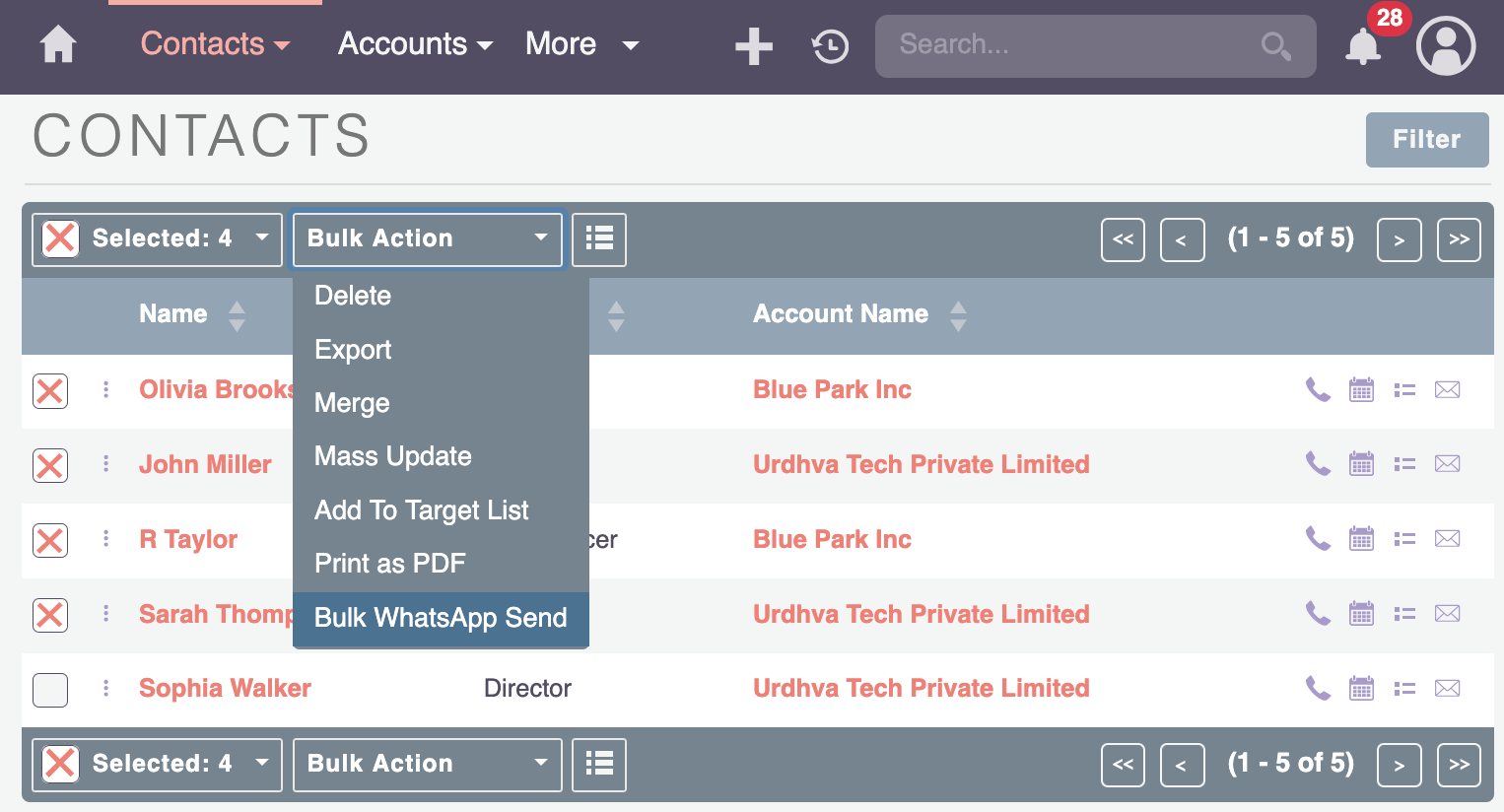
- Go to your Contacts, Leads, or Accounts list (whichever group you want to message)
- Check the boxes next to all the people you want to message
- Look for Bulk Actions at the top of the list
- Click Bulk Actions and choose WhatsApp Bulk Send
- You'll be taken to a page where you can choose your message template and customize it
3.3.3 Sending Right Away vs. Scheduling
When you're ready to send, you have two options:
Send Now:
- Messages go out immediately
- Great for urgent announcements or time-sensitive information
- You'll see the messages being sent right away
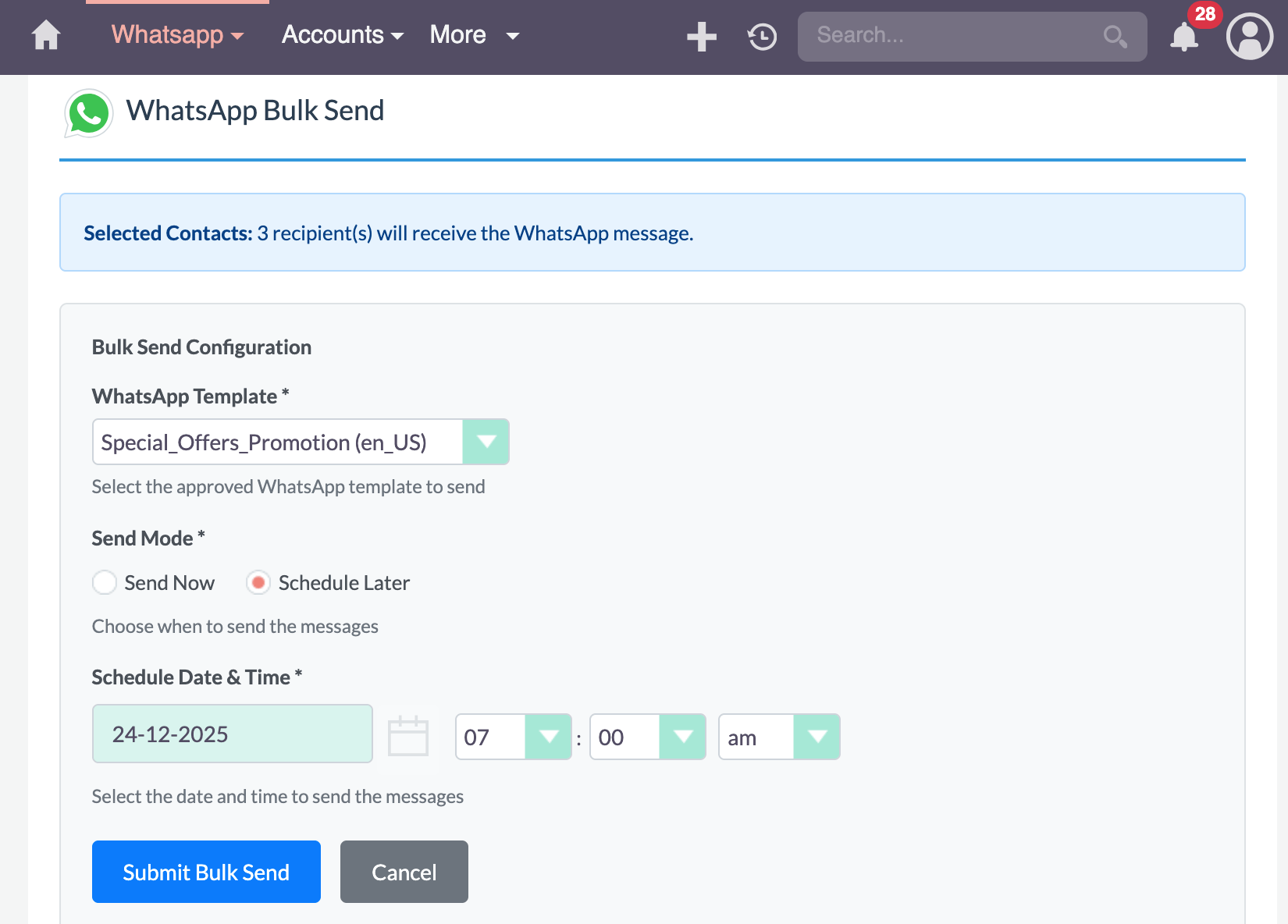
Schedule for Later:
- Pick a date and time when you want messages to be sent
- Messages will be queued and sent automatically at that time
- Perfect for planned campaigns, promotions, or announcements
- Great for sending messages at the best time for your customers (like during business hours)
3.4 Starting Chats from Customer Records
One of the easiest ways to start a WhatsApp conversation is right from a customer's record!
How to do it:
- Open any Contact, Account, or Lead record
- Look for the WhatsApp Conversation button
- Click it
- If the record has a phone number, the chat will open automatically
- Type your message and send it!
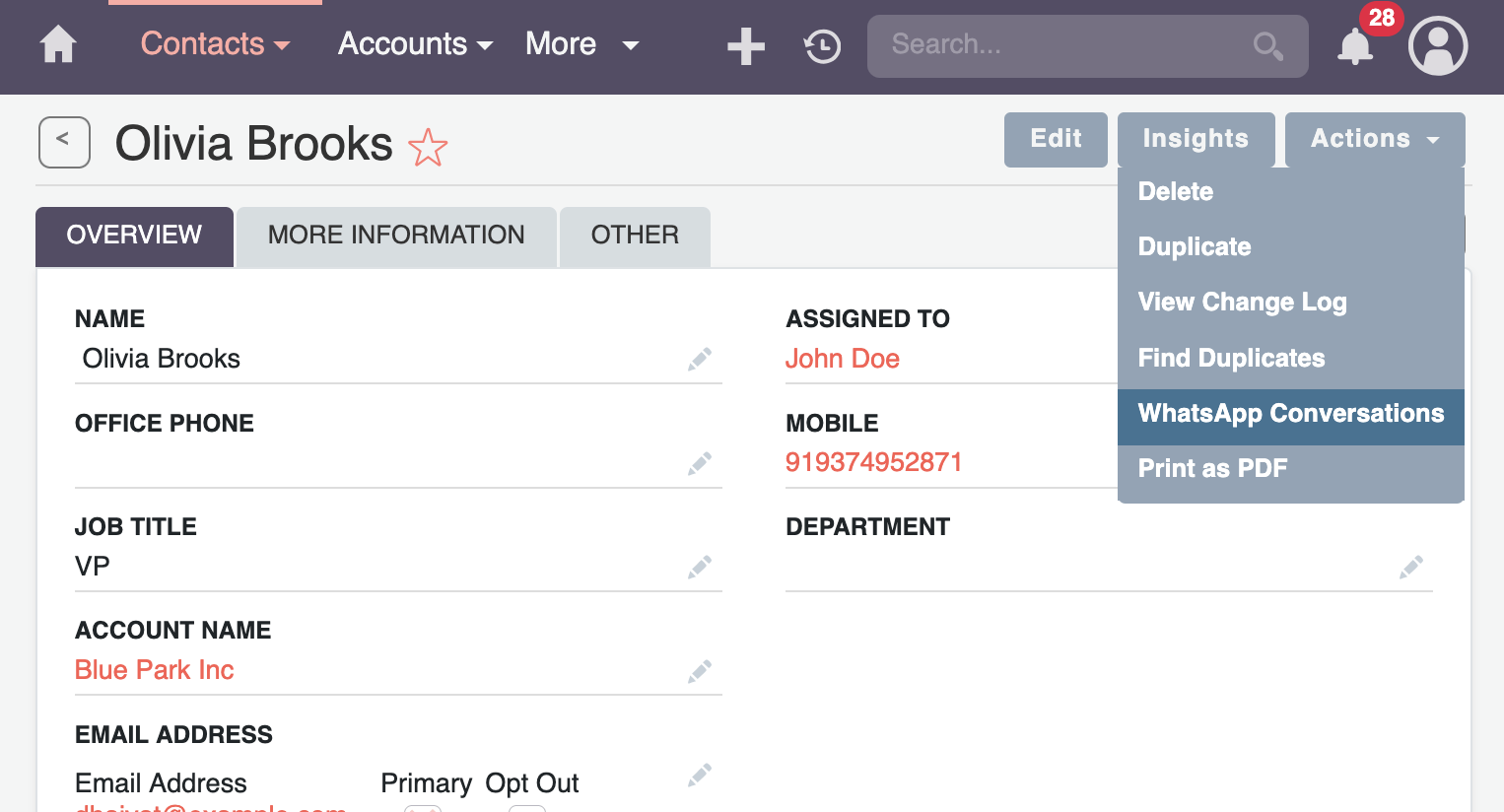
This is super convenient because you can see all the customer's information right there, and then send them a message without having to switch between different screens.
3.5 Using Message Templates
Message templates are pre-written messages that have been approved by WhatsApp (Meta). They're great for:
- Looking professional and consistent
- Sending messages to people you haven't talked to in 24+ hours
- Common situations like order confirmations, appointment reminders, or welcome messages
Important: Templates need to be created and approved by WhatsApp before you can use them. This usually takes a day or two. Once approved, they'll automatically appear in your template dropdown when sending messages.
If you need new templates, your administrator will need to create them in your WhatsApp Business Account and wait for approval.
3.6 Viewing Your Messaging Statistics
Want to see how your WhatsApp messaging is performing? Check out the Statistics page!
How to access: Go to WhatsApp > Statistics
What you can see:
- How many messages you've sent and received
- How many bulk messages were successful vs. failed
- Which messages got delivered and which didn't
- Statistics over time (daily, weekly, monthly)
- Filter by date range, user, or type of record
- Recent bulk jobs and individual messages
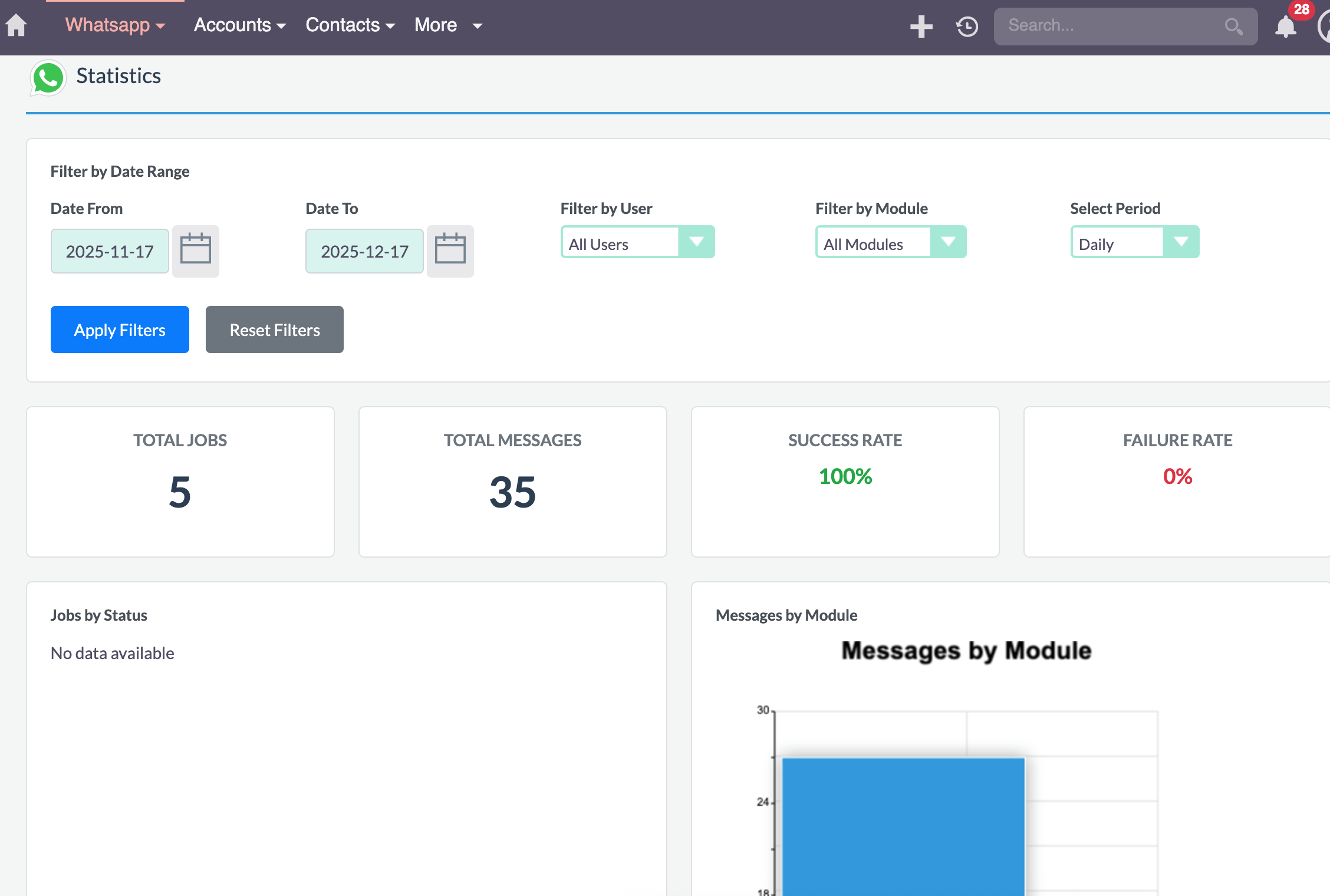
This is great for understanding what's working, tracking your communication activity, and making sure messages are being delivered successfully!
4. Advanced Features
These features help you automate your messaging and work more efficiently. Some of these might require administrator access or technical knowledge.
4.1 Automating Messages with Workflows
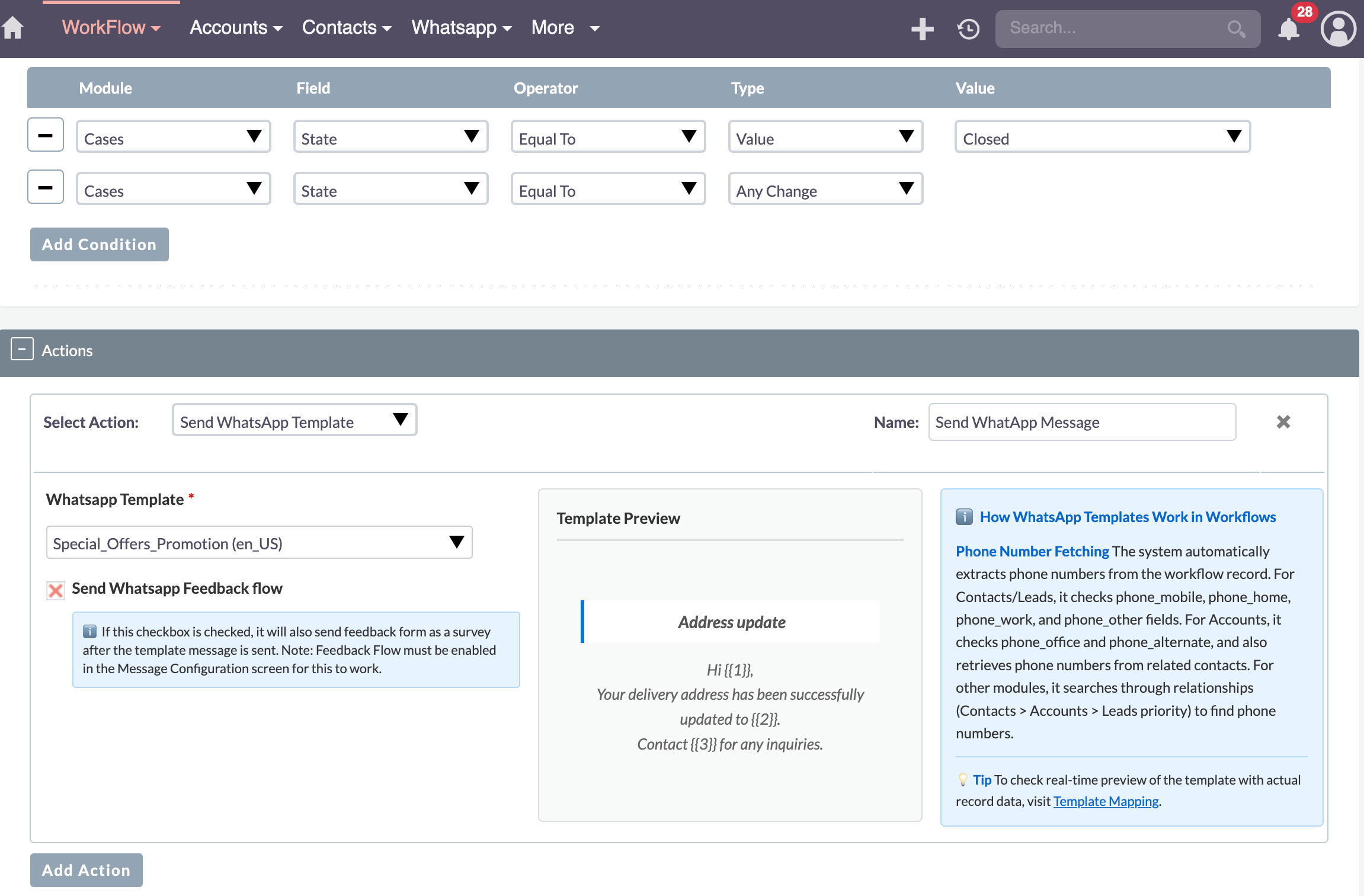
You can set up SuiteCRM workflows to automatically send WhatsApp messages when certain things happen. This saves you time and ensures customers get timely updates!
Examples of what you can automate:
- Send a welcome message when a new lead is created
- Send an appointment reminder the day before a meeting
- Send an order confirmation when an order is placed
- Send a support update when a ticket status changes
- Send a feedback request after a case is closed
How to set it up:
- Go to Administration and create or edit a workflow
- Add a new action to the workflow
- Look for Send WhatsApp Message in the action list
- Choose which template to use and configure any settings
- Save the workflow
4.2 Ideas for Automated Messages
Here are some great ways to use automated WhatsApp messages:
- Welcome Messages: Greet new customers or leads automatically
- Appointment Reminders: Remind customers about upcoming appointments
- Order Confirmations: Confirm orders and provide tracking information
- Support Updates: Notify customers when their support ticket is updated
- Marketing Campaigns: Send promotional messages to specific customer groups
- Feedback Requests: Ask for feedback after a service is completed
The possibilities are endless! Think about what information your customers would appreciate getting automatically, and set up workflows to send it.
4.3 How Media Files Work
When customers send you photos, documents, or audio files through WhatsApp, SuiteCRM automatically:
- Downloads the file from WhatsApp
- Saves it in SuiteCRM
- Links it to the conversation and message record
This means you never lose customer attachments, and you can access them anytime from SuiteCRM. You can also send media files to customers—just use the attachment button in the chat!
- WhatsApp receives the message
- WhatsApp sends it to SuiteCRM (this is called a "webhook")
- SuiteCRM processes the message and saves it
- The message appears in your conversations
This all happens automatically and very quickly—usually within seconds! You don't need to do anything special; just make sure your administrator has set everything up correctly.
Here's how it works:
- When a customer starts a flow, SuiteCRM creates a session
- The session remembers what the customer has selected so far
- If the customer doesn't respond for a while (usually 1-10 minutes, depending on your settings), the session times out
- If a session times out, the customer can start over
You can adjust how long sessions last in the configuration settings. Shorter times mean customers need to respond faster, but it also means inactive sessions don't hang around taking up space.
SuiteCRM tries several ways to find a match:
- Direct match: Does the phone number match exactly?
- Format matching: Tries different phone number formats (with/without country codes, spaces, dashes, etc.)
- Related records: Checks if the number belongs to someone related to a contact (like a company phone number)
If SuiteCRM finds a match, the conversation is automatically linked to that record. If not, you can still chat, but you might want to create a new contact record for that person.
5. Troubleshooting
Having trouble? Don't worry! Here are solutions to common problems you might encounter.
5.1 Common Problems and How to Fix Them
I'm Not Receiving Messages from Customers
If messages from customers aren't showing up in SuiteCRM, here's what to check:
- Check with your administrator: The connection between WhatsApp and SuiteCRM might need to be reconfigured
- Make sure the setup is complete: The initial connection setup must be done correctly for messages to be received
- Check if it's a temporary issue: Sometimes there are brief delays, especially right after setup
I Can't Send Messages
If your messages aren't sending, try these steps:
- Check the phone number: Make sure it's in the correct format (with country code, like +1234567890)
- Use a template if needed: If you haven't chatted with this person in 24+ hours, you must use an approved template
- Check if the template is approved: Templates need to be approved by WhatsApp before you can use them
- Wait a moment and try again: Sometimes there are temporary delays
- Check with your administrator: The connection to WhatsApp might need to be refreshed
My Connection Expired
Token refresh is handled automatically by a scheduled job called "WhatsApp - Refresh Long Live Token". This job automatically extends your token expiry to 60 days.
For administrators:
- The scheduled job is set up to run automatically
- You can configure the frequency to run every 15 days to ensure the token never expires
- Go to Administration > Schedulers to check or adjust the job settings
If you still see connection issues, ask your administrator to verify the scheduled job is running correctly.
Bulk Messages Failed
If some of your bulk messages didn't send:
- Check phone numbers: Make sure all selected contacts have valid phone numbers
- Check the template: Make sure you're using an approved template
- Check the Statistics page: See which messages failed and why
- Try sending in smaller batches: Sometimes sending too many at once can cause issues
5.2 Understanding Error Messages
If you see an error code, here's what it usually means:
- Error 100: Something is wrong with the information you entered (like an invalid phone number or missing template)
- Error 131047: The message couldn't be delivered (maybe the phone number is wrong or the person blocked you)
- Error 132000: You're sending messages too quickly—slow down and try again in a few minutes
- Error 190: Your connection to WhatsApp needs to be refreshed (see "My Connection Expired" above)
If you see an error you don't understand, take a screenshot and ask your administrator for help. They can usually figure out what's wrong!
5.3 Still Having Problems?
If none of these solutions work, don't hesitate to:
- Contact your system administrator
- Check if there are any announcements about WhatsApp service issues
- Make sure your SuiteCRM and WhatsApp Integration are up to date
Most issues are quick fixes once you know what's wrong!
6. Tips for Success
Here are some best practices to help you get the most out of WhatsApp messaging and provide a great experience for your customers!
6.1 Writing Great Messages
- Keep it short and sweet: People read messages on their phones, so get to the point quickly
- Use templates when possible: They look professional and save you time
- Personalize your messages: Use the customer's name and other details from their CRM record
- Be clear about what you want: If you need the customer to do something, say it clearly
6.2 Making the Most of Templates
- Plan ahead: Create templates before you need them, since approval can take a day or two
- Use placeholders: Set up template mappings so customer names and details are filled in automatically
- Test before sending: Send a test message to yourself before using a template for bulk messaging
- Check approval status: Make sure templates are approved before trying to use them
- Keep mappings updated: If you add new fields to customer records, update your template mappings to use them
6.3 Sending Messages to Many People
- Send to the right people: Make sure you're messaging people who actually want to hear from you
- Pick the right time: Use scheduled sending to send messages during business hours when people are more likely to read them
- Check your results: After sending, check the Statistics page to see how many messages were delivered
- Follow up on failures: If some messages failed, check why and try again if needed
- Don't send too many at once: WhatsApp has limits on how fast you can send messages
- Test with a small group first: Before sending to hundreds of people, test with a small group to make sure everything works
6.4 Creating Great Automated Conversations
- Write clear instructions: Make sure customers understand what to do at each step
- Keep it simple: Don't make flows too complicated—break things into simple steps
- Be helpful with errors: If a customer enters something wrong, tell them what went wrong and how to fix it
- Don't overwhelm with options: Keep menus to 3-4 options maximum—too many choices can be confusing
- Test everything: Go through each flow yourself before enabling it to make sure it works smoothly
6.5 Working Efficiently
- Use bulk messaging for multiple people: Don't send the same message one by one—use bulk messaging!
- Schedule messages ahead of time: Plan your messages and schedule them instead of sending everything immediately
- Check your statistics regularly: See what's working and what isn't so you can improve
6.6 Keeping Things Secure
Security is important! Here's what administrators should know:
- Don't share login information: Keep your WhatsApp connection details private
- Use strong security codes: When setting up the connection, use a strong, random security code
- Limit who can change settings: Only give administrator access to people who need it
- Refresh connections when needed: If you see security warnings, refresh your connection
6.7 Providing Great Customer Service
At the end of the day, WhatsApp is about connecting with your customers. Here's how to make it a great experience:
- Respond quickly: Customers expect fast responses on WhatsApp—try to reply within a few hours, or even minutes if possible
- Use their information: Reference their past orders, appointments, or conversations to show you know who they are
- Keep it simple: Use clear, easy-to-understand language—avoid jargon
- Respect their preferences: If someone asks to stop receiving messages, honor that request
- Send valuable content: Don't spam—only send messages that are actually useful to the customer
- Listen to feedback: Pay attention to customer feedback and use it to improve your service
Remember: WhatsApp is a personal communication channel. Treat it like you're having a conversation with a friend, but keep it professional!