

Meta Leads for SuiteCRM - Admin Setup Guide | Facebook & Instagram Lead Ads
Meta Leads for SuiteCRM
Admin Guide — Create the Meta app & configure SuiteCRM
Create the Meta app, connect Admin → Meta Leads in SuiteCRM, enable forms, and verify Facebook and Instagram leads. Screenshots match the real Meta and SuiteCRM screens.
Also see the product page: Meta Leads for SuiteCRM and the guide Sync Facebook & Instagram leads to SuiteCRM.
What you need
- SuiteCRM with Meta Leads installed and a valid license
- SuiteCRM Admin access
- A Facebook user who can advertise on the Pages (and linked Instagram accounts) you want in CRM
- A public HTTPS SuiteCRM URL — Meta cannot verify webhooks on localhost
1. SuiteCRM URLs (copy these)
You will paste these into Meta and into Admin → Meta Leads.
| SuiteCRM field | Value |
|---|---|
| OAuth Redirect URI | https://your-crm.example.com/index.php?entryPoint=ut_sm_oauth_handler |
| Callback URL (Webhook URL) | https://your-crm.example.com/index.php?entryPoint=ut_sm_inbound |
| Verify Token | Any secret you choose (for example SuiteCRM_MetaLeads_2026). Letters, numbers, . _ - only. Same value in Meta and SuiteCRM. |
2. Create the Meta app
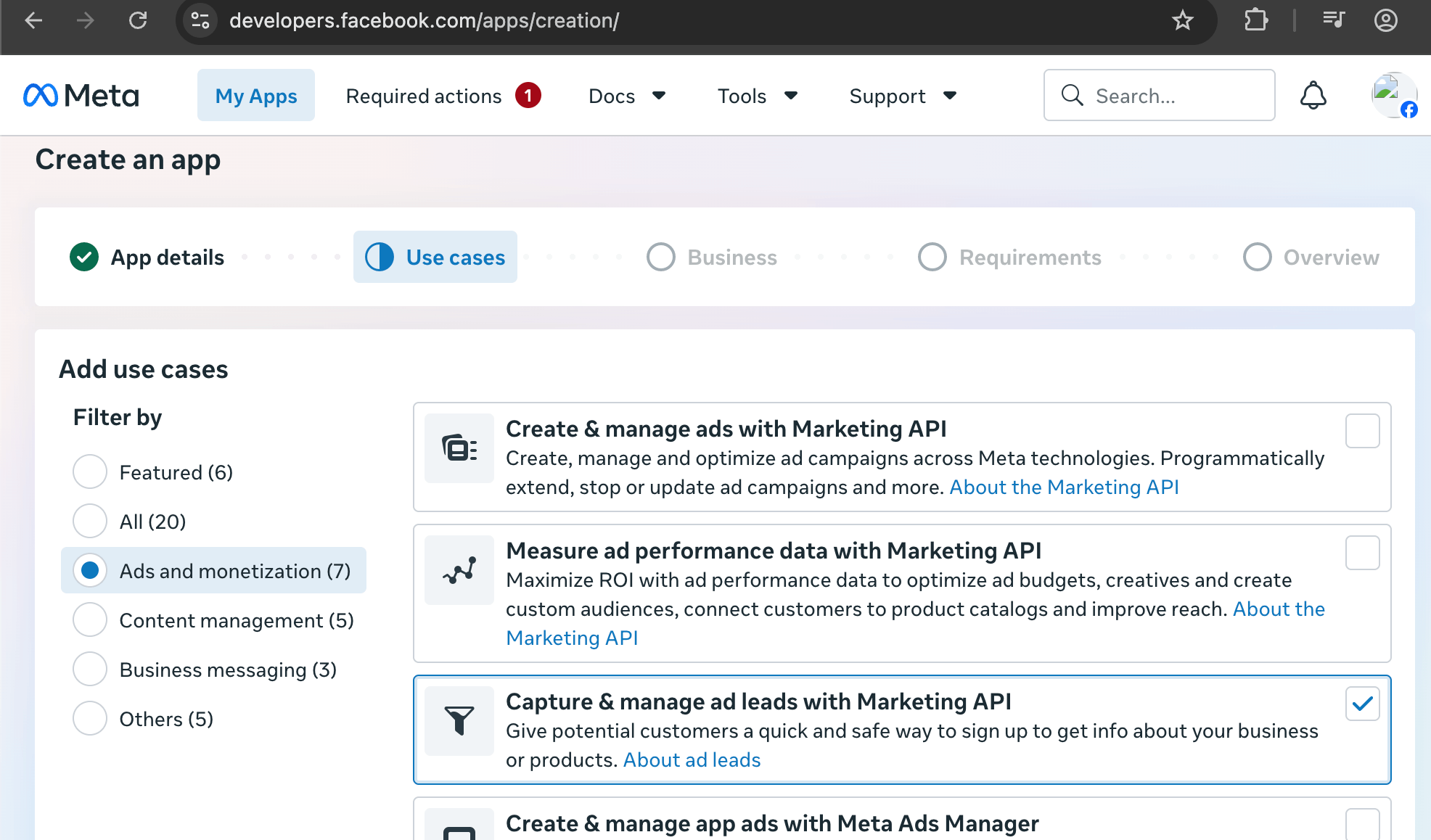
- Open developers.facebook.com/apps → Create app.
- Select only this use case: Capture & manage ad leads with Marketing API.
- Enter an app name and contact email. Connect a Business Portfolio if asked. Create the app.
Permissions & features
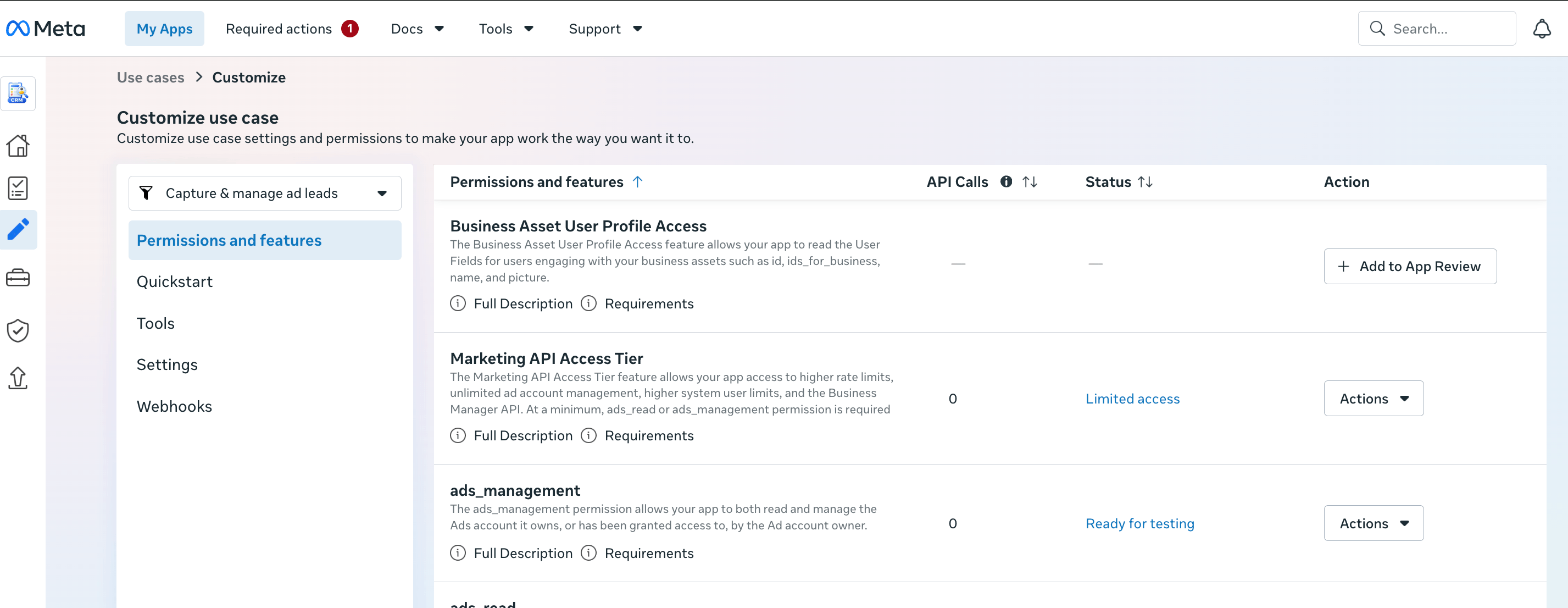
Open Use cases → Capture & manage ad leads with Marketing API → Customize. You will see options such as Permissions & features and Webhooks.
Open Permissions & features:
- Leave the permissions Meta already requires (including
business_management,leads_retrieval,pages_*,ads_*). The trash icon onbusiness_managementis often grey — that is expected. You need it so Business Portfolio Pages appear in SuiteCRM. - Add optional permission
pages_manage_metadata— SuiteCRM uses this to subscribe each Page toleadgenfor real-time delivery. - Do not add
email, catalog, messaging, or Page posting permissions.
OAuth redirect
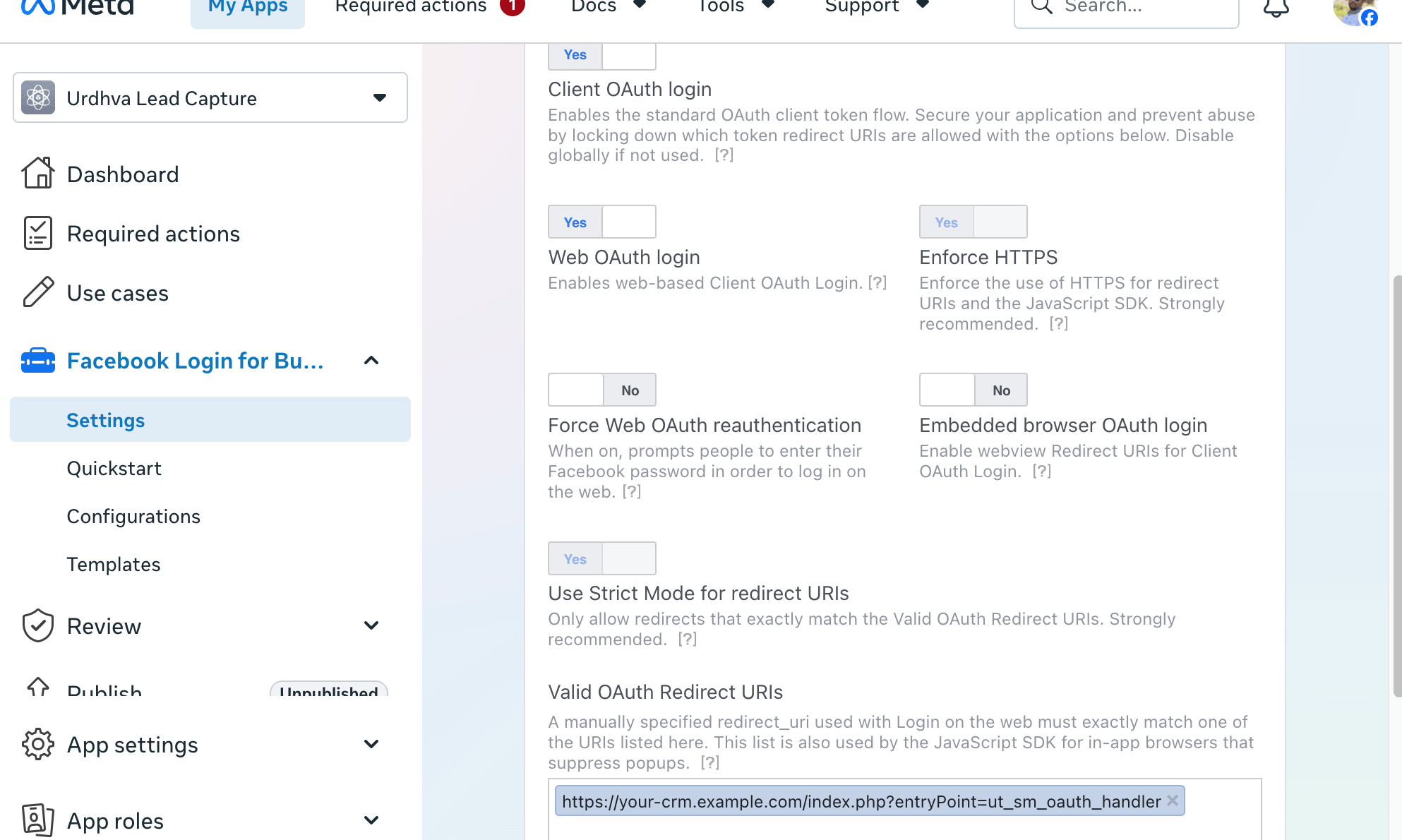
- Open Facebook Login for Business → Settings.
- Enable Client / Web OAuth login if shown.
- Under Valid OAuth Redirect URIs, paste:
- Save.
Webhooks (Page → leadgen)
- Go to Use cases → Capture & manage ad leads with Marketing API → Customize.
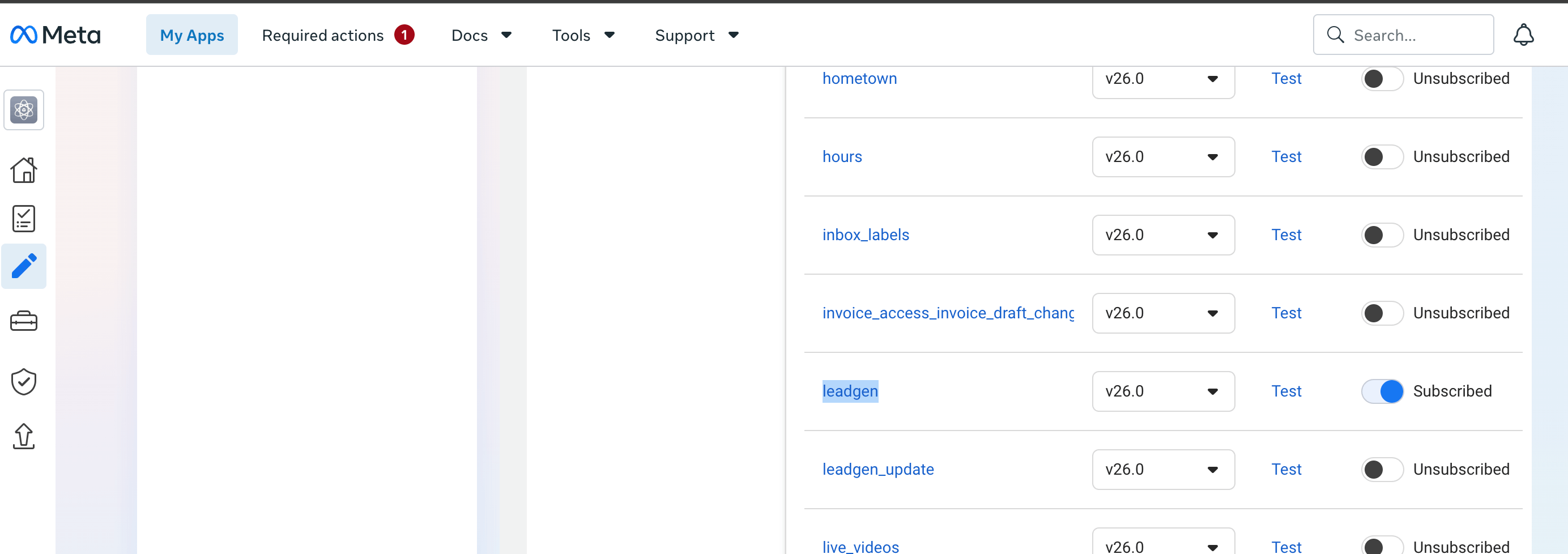
- Open Webhooks (same Customize screen as Permissions & features — not a separate product to add).
- Select object / product Page (not User, Instagram, or Ad Account).
- Set Callback URL:
- Set Verify token to the same secret as in SuiteCRM.
- Click verify / subscribe so Meta can reach SuiteCRM.
- Subscribe to field
leadgenonly. Do not subscribe to feed, messages, or name.
App ID and App Secret
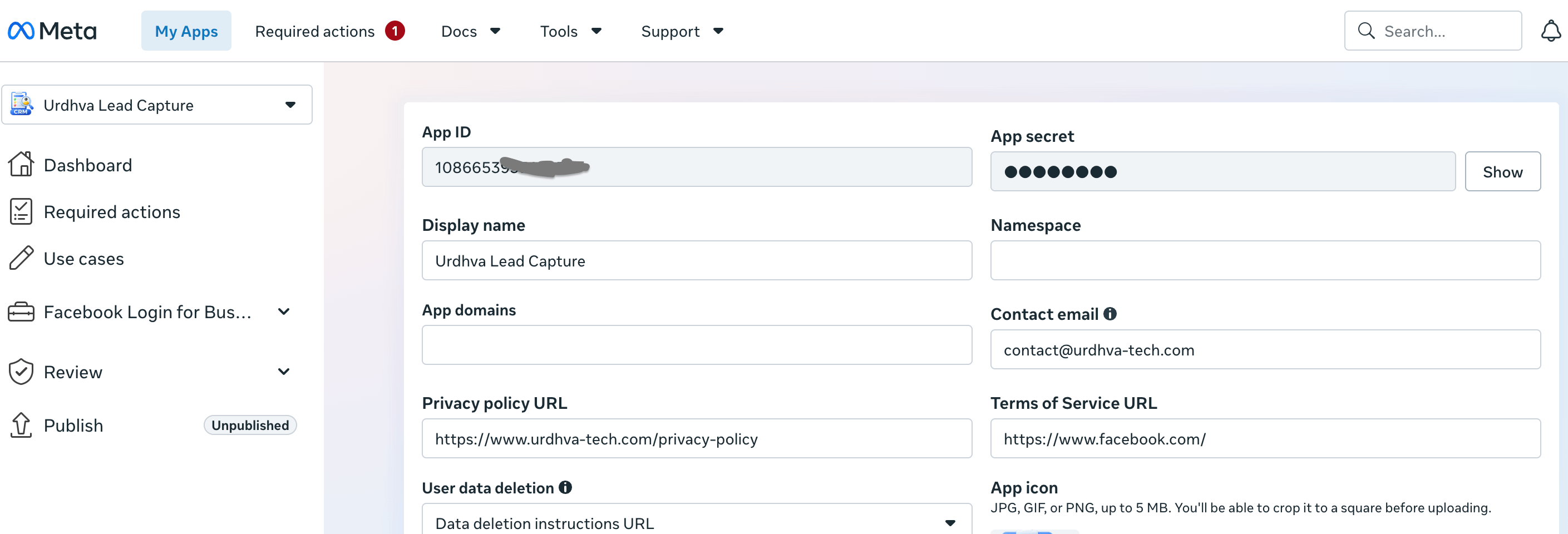
- App settings → Basic: copy App ID and App Secret.
- Set a Privacy Policy URL (needed before the app can go Live).
3. Configure SuiteCRM (Admin → Meta Leads)
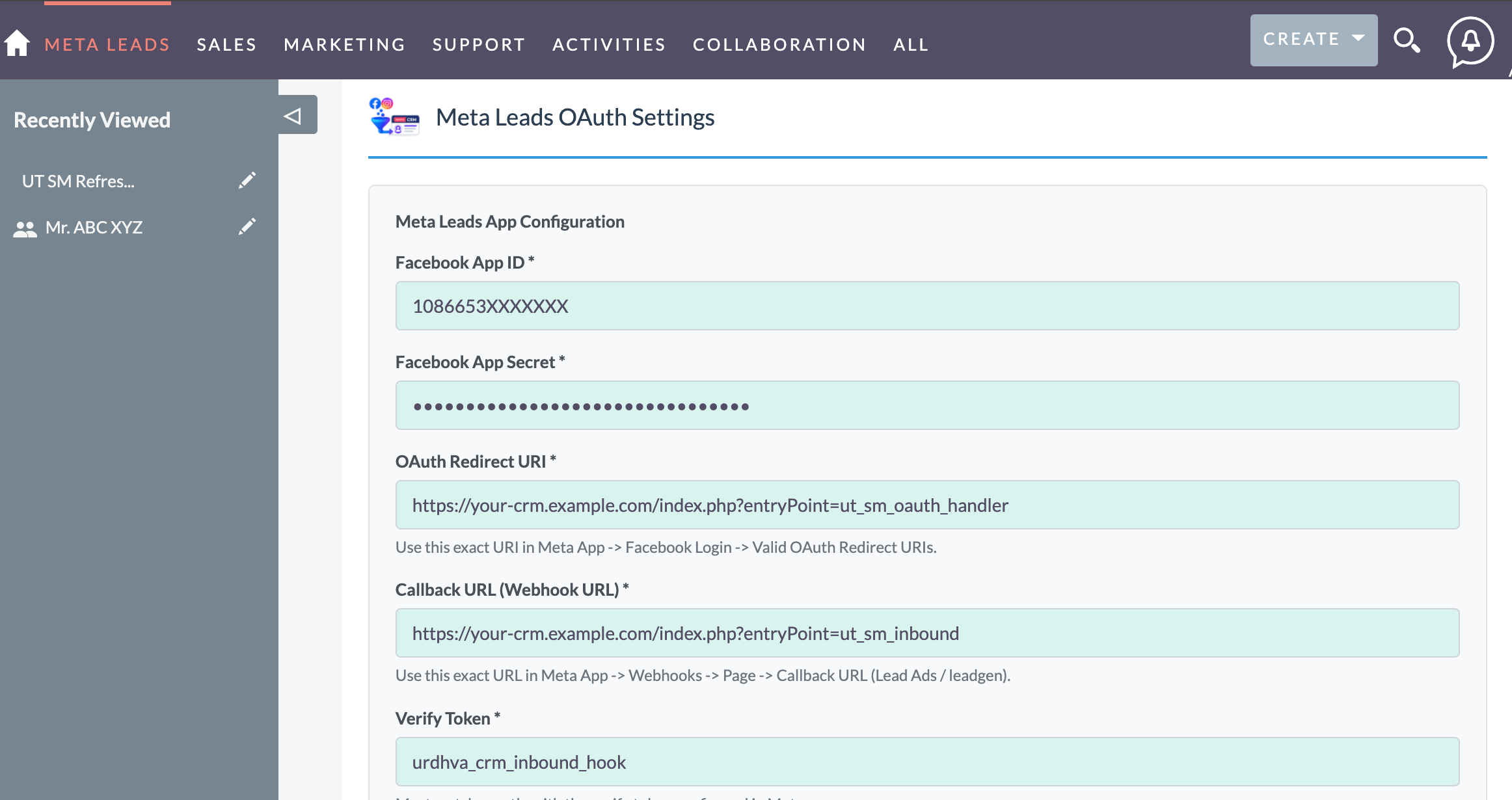
- Open Admin → Meta Leads.
- Fill in and Save Settings:
- Facebook App ID
- Facebook App Secret
- OAuth Redirect URI (must match Meta)
- Callback URL (must match Meta)
- Verify Token (must match Meta)
- Reconciliation lookback hours (default 24, max 168) — how far back missed-lead recovery searches
- Then complete the Meta webhook verify step above if you have not already.
4. Authorize and check Connected Accounts
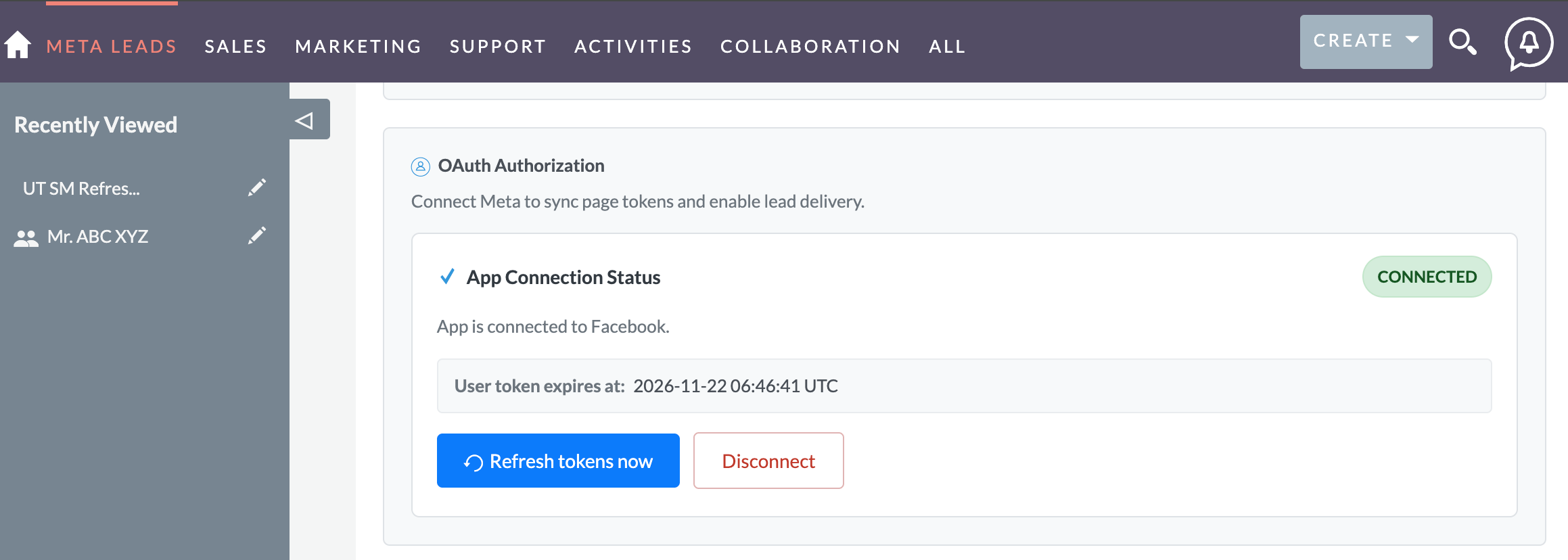
- Click Authorize with Facebook.
- Log in as the advertiser who owns the Pages. Grant the Lead Ads permissions (including business management) and allow every Page you need.
- Confirm status shows Connected.
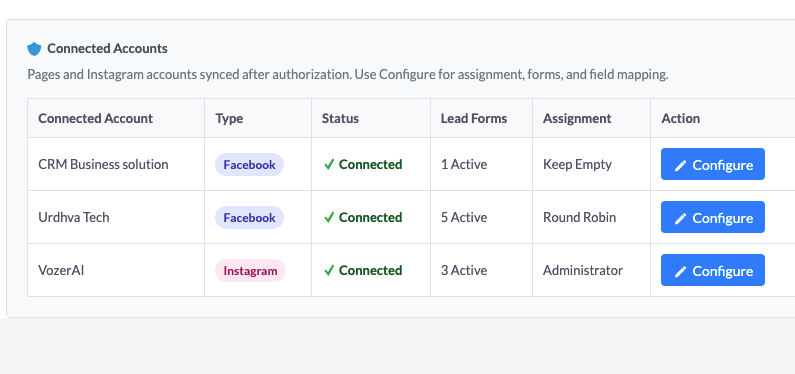
- Under Connected Accounts, confirm Facebook Pages (and linked Instagram business accounts, if any) are listed.
pages_show_list, leads_retrieval, pages_read_engagement, pages_manage_metadata, pages_manage_ads, business_management, ads_management, ads_read. Authorization also syncs page tokens and subscribes Pages to leadgen.business_management was not granted. Fix access, then use Refresh tokens now or disconnect and authorize again.5. Configure each account (forms, mapping, assignment)
For each Page or Instagram row, click Configure.
- Lead Assignment — Keep Empty, Specific User, Round Robin (pick users), or Security Group.
- Lead Forms — click Refresh Forms, then enable only the forms that should create SuiteCRM Leads. Forms that stay unchecked are ignored.
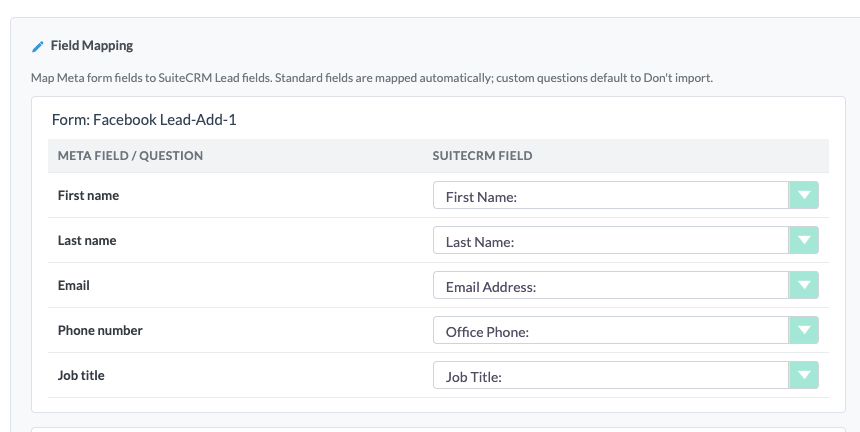
- Field Mapping — name, email, and phone usually map automatically. Map or set custom questions to Don’t import. Use Name (split to First / Last) when the form sends a full name.
- Click Save Configuration.
6. Verify the setup
Cron (required)
SuiteCRM cron must be running. Meta Leads uses it for:
- Token refresh (scheduler job is created on authorize)
- Meta Lead Reconciliation — about every 30 minutes; catches leads missed by webhooks and retries failed imports
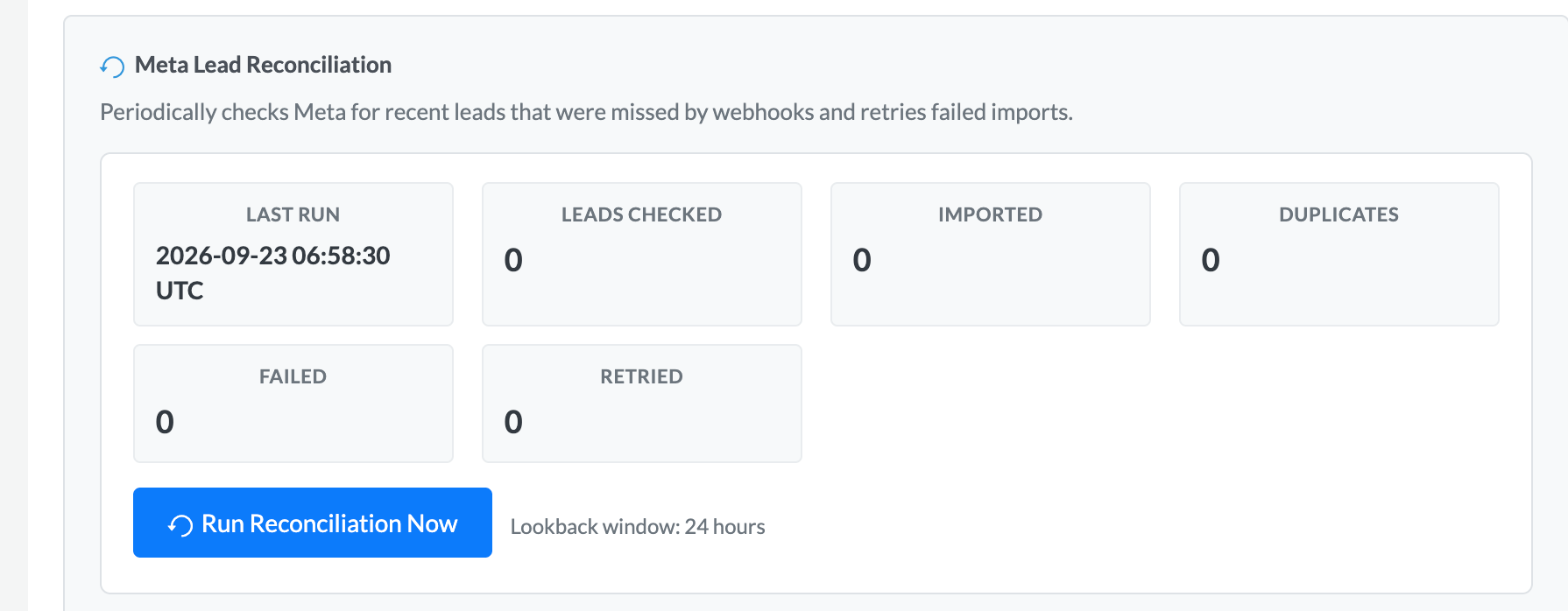
Optional: on Admin → Meta Leads use Run Reconciliation Now if a webhook did not deliver (for example after a temporary outage).
7. Go Live (only if other customers’ Pages will connect)
In Development mode, only app Admins / Developers / Testers can connect. For other businesses:
- Complete Business Verification on the Meta Business Portfolio.
- Submit App Review for the Lead Ads permissions (include
pages_manage_metadata). - In review notes: how to open Admin → Meta Leads, Authorize, confirm Pages appear, enable a form, create a test lead.
- After approval, Publish the app. In SuiteCRM, Disconnect → Authorize again if needed.
Setup checklist
Meta
- Use case: Capture & manage ad leads with Marketing API only
- Added
pages_manage_metadata - OAuth redirect URI matches SuiteCRM
- Use cases → Customize → Webhooks → Page →
leadgen; callback + verify token match SuiteCRM - Privacy Policy URL set (before Live)
SuiteCRM
- License valid
- Admin → Meta Leads: App ID, Secret, URIs, verify token saved
- Authorize completed → status Connected
- Expected Pages / Instagram accounts listed
- Per account: forms enabled, mapping OK, assignment set, configuration saved
- Cron running
If something fails — what to check
| Symptom | Check |
|---|---|
| Webhook verify fails | SuiteCRM saved first; callback URL and verify token identical; site reachable on HTTPS |
| Authorize works but no Pages | User’s Page access; business_management granted; then Refresh tokens or re-authorize |
| Lead not in SuiteCRM | Form enabled on that account; license valid; webhook subscribed to leadgen; try Run Reconciliation Now |
| Instagram leads missing | IG business account linked to the Page; Instagram row configured and form enabled (not only the Facebook row) |
| Token expiry warning | Click Refresh tokens now; confirm cron is active |