

Blogs
March
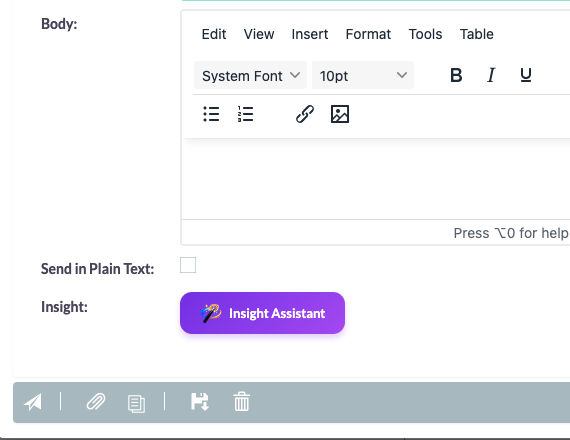
For most SuiteCRM users, email is where the day actually happens—responding to leads, following up with customers, coordinating with partners, or resolving support issues. But writing every reply from scratch, switching to external AI tools, and trying to keep messages on-brand quickly adds up to a lot of time.
The SuiteAI Insights Email Assistant brings AI-powered drafting, replies, and text clean‑up directly into the SuiteCRM email compose window. No copy‑paste, no extra browser tabs—just smarter emails written faster, right where you already work.
Built on the same AI foundation as the SuiteAI Insights record panels, the email assistant understands your current message, applies consistent instructions across providers, and returns clean text that drops straight into the editor. Whether you need a quick thank‑you, a more formal response, or a translation for an international customer, you can do it in a couple of clicks.
Meet the SuiteAI Email Assistant Panel
Once SuiteAI Insights is installed and configured, you’ll see a SuiteAI button with the Insight logo inside the Email compose view. Clicking it opens a compact panel with sections for user prompts, smart replies, greetings, text modifications, tone changes, and translations.
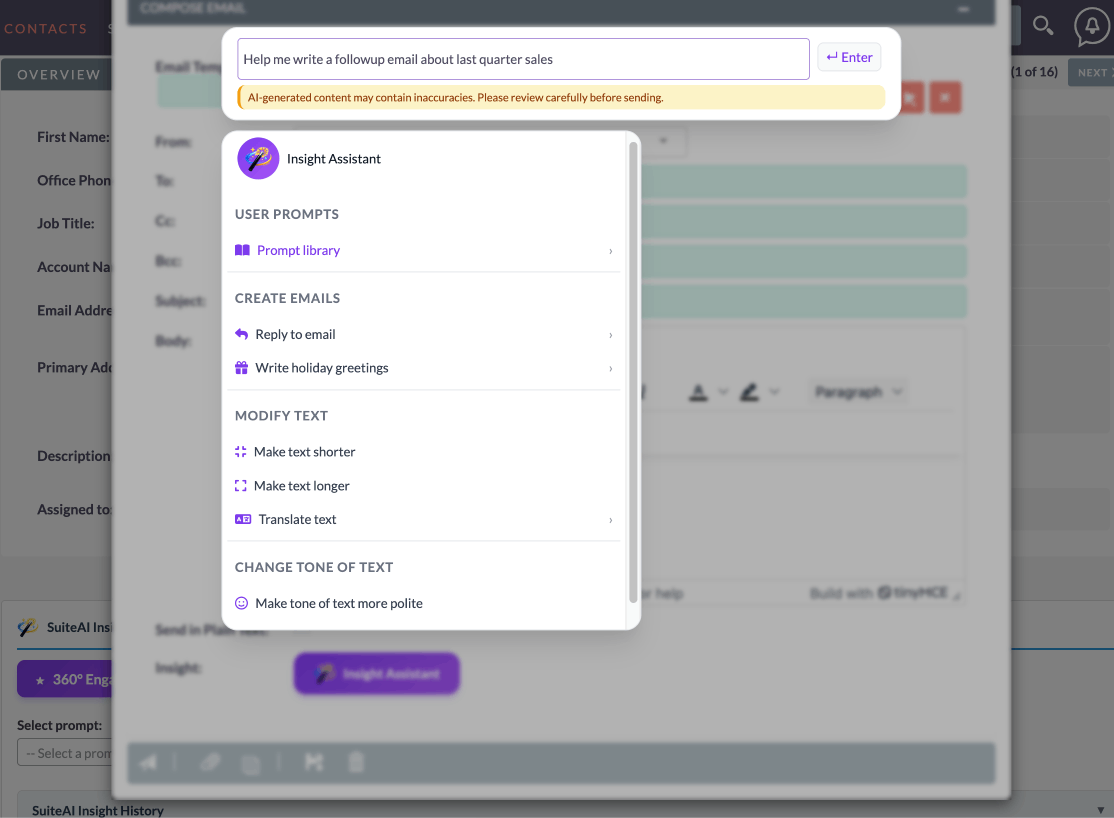
The panel always lives next to the editor so you can see both your original text and the AI‑generated version at the same time. When you pick an action, SuiteAI reads the current body, calls your configured provider, and replaces the content with the new draft.
1. One‑Click Smart Replies
Instead of staring at a blank reply field, you can let SuiteAI propose a response and then make small edits. From the Create Emails section, you can choose among reply styles such as:
- Positive reply – appreciative follow‑up when things went well.
- Negative reply – polite decline or pushback without sounding harsh.
- Professional reply – clear, straightforward response asking for clarification or next steps.
- Friendly reply – warm, relationship‑building tone for trusted contacts.
The assistant reads the existing email body, then generates a reply that matches the intent you chose. You remain in full control—edit the text as needed before hitting send.
2. Professional Greetings & Outreach Templates
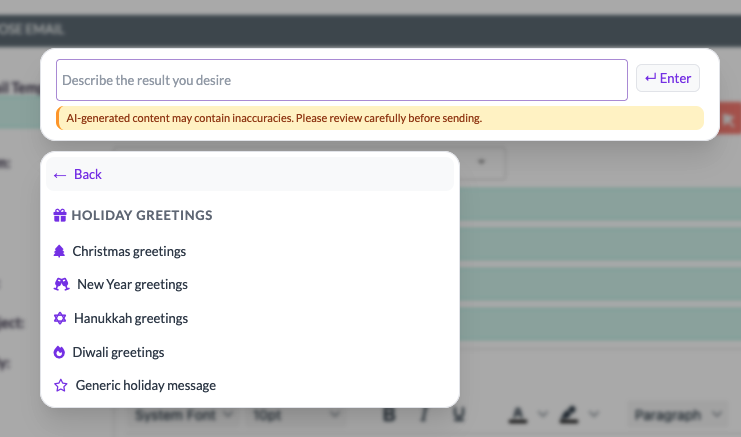
Seasonal and generic greetings are important, but they’re also repetitive. The Email Assistant includes shortcuts for common greeting types (such as Christmas, New Year, Diwali, and generic holiday messages) so you can start from a polished, AI‑generated draft instead of typing from scratch every time.
These greetings are written in a professional tone and structured to work as full email bodies. You can use them as‑is for quick outreach or customize the details before sending to your audience.
3. Translate and Adapt Emails for Global Customers
If you work with customers in multiple regions, SuiteAI can help you adapt your existing email body without losing meaning. From the Translate submenu, you can translate the current message into Spanish, French, German, or Italian.
Behind the scenes, the assistant strips HTML tags to send clean text to the AI provider and then re‑wraps the translated output into paragraphs inside the editor. The result feels like a native message instead of a raw machine translation.
4. Make Emails Shorter, Clearer, or More Detailed
Some emails are too long, others not detailed enough. The Modify Text actions help you strike the right balance:
- Make shorter – condense the current body while keeping key points.
- Make longer – expand on ideas to add explanations or context.
- More polite / more formal – adjust tone to match your brand or audience.
These options are especially useful for support teams and account managers who send similar messages repeatedly and need them to sound consistent, clear, and on‑brand.
5. Use the SuiteAI Prompt Library While Composing
The Prompt Library entry in the panel connects to the same SuiteAI prompt definitions you use elsewhere in the system. Administrators can define prompts for specific modules and security groups, and the email assistant automatically shows only those prompts the current user is allowed to run.
This means you can, for example, run a “Prepare renewal summary” prompt while composing an email that is related to a specific Account or Opportunity, and let the AI draft a tailored paragraph you can paste into your message.
Privacy, Control, and Provider Flexibility
Just like the record‑level insights, the Email Assistant is built with privacy and control in mind:
- Only the email body is sent to the AI provider, and HTML is converted to plain text first.
- Instructions explicitly tell the model to return plain text only (no JSON, HTML, or markdown), so output is predictable.
- The same provider configuration used for SuiteAI Insight panels is reused here—whether that’s OpenAI, Gemini, Grok, or a Local LLM.
This keeps your experience consistent: switch providers centrally and the Email Assistant automatically follows those settings without any changes for end users.
From Click to Send: A Quick Walkthrough
Here’s how a typical user might work with the SuiteAI Email Assistant:
- Open the Email compose view in SuiteCRM.
- Click the SuiteAI Insights button to open the assistant panel.
- Write or paste your initial draft (or start from an existing reply).
- Choose an action such as “Positive reply”, “Make shorter”, or “Translate to Spanish”.
- Wait a moment for the AI to return the new version of the body.
- Review, make any final edits, and send.
Watch SuiteAI Email Assistant Demo
Why It Matters for Email‑Heavy Teams
Sales reps, account managers, support agents, and marketing specialists often spend hours each day inside the Email module. By moving AI directly into the compose window, SuiteAI Insight turns those small moments—replying, clarifying, rewriting—into opportunities to save time and improve quality.
Instead of being “yet another tool” to learn, the assistant feels like an upgrade to the email editor you already know. Adoption is simple: click, choose an action, tweak the result, send.
Give your SuiteCRM users an AI partner for every email with SuiteAI Insight – faster, clearer communication without leaving your CRM.
Comments
- No Comments Found.